Nonlinear Mechanical (Marc) Analysis
The Nonlinear Mechanical (Marc) analysis type is used to simulate intricate mechanical responses in structural elements and components subjected to significant deformation, challenging contact interactions—including self-contact—and strongly nonlinear material behaviors.
This analysis type is particularly well-suited for scenarios like metal forming, rubber part simulation, and the design of mechanical joints, where conventional linear approaches fall short.
Nonlinear Mechanical (Marc) is powered by ‘Marc™’. Marc™ is a registered trademark of Cadence.
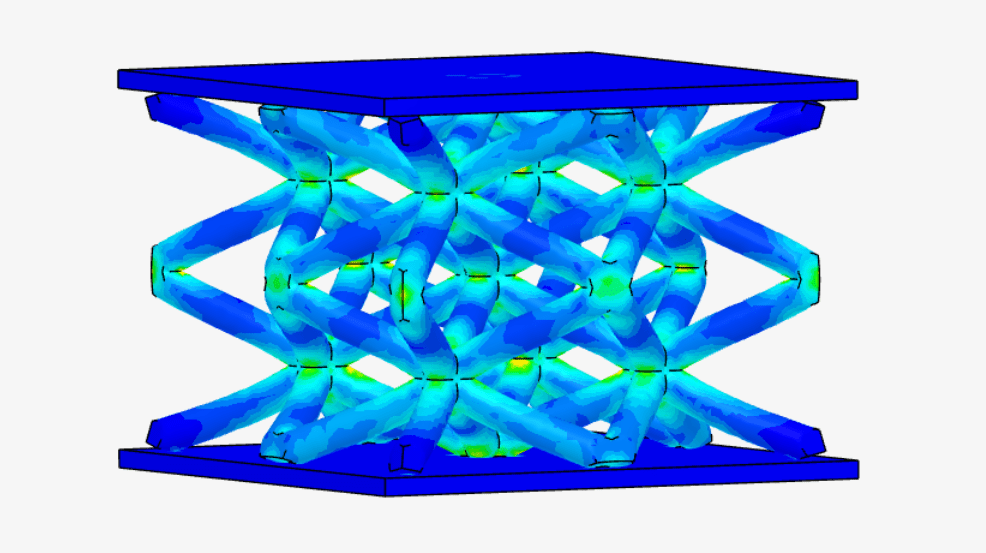
Within SimScale, one can effortlessly set up a nonlinear mechanical simulation using the steps described below.
Creating a Nonlinear Mechanical (Marc) Analysis
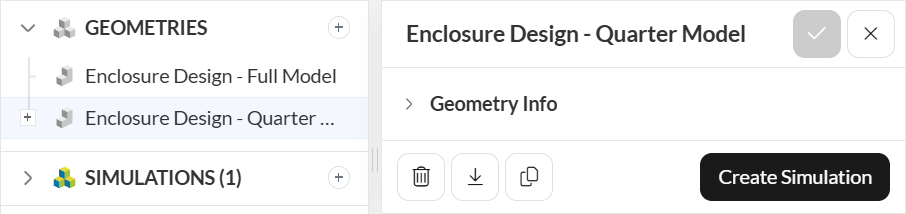
To create a Nonlinear Mechanical (Marc) analysis, first, select the desired geometry and click on ‘Create Simulation’:
Next, a window with a list of several analysis types supported in SimScale will be displayed:
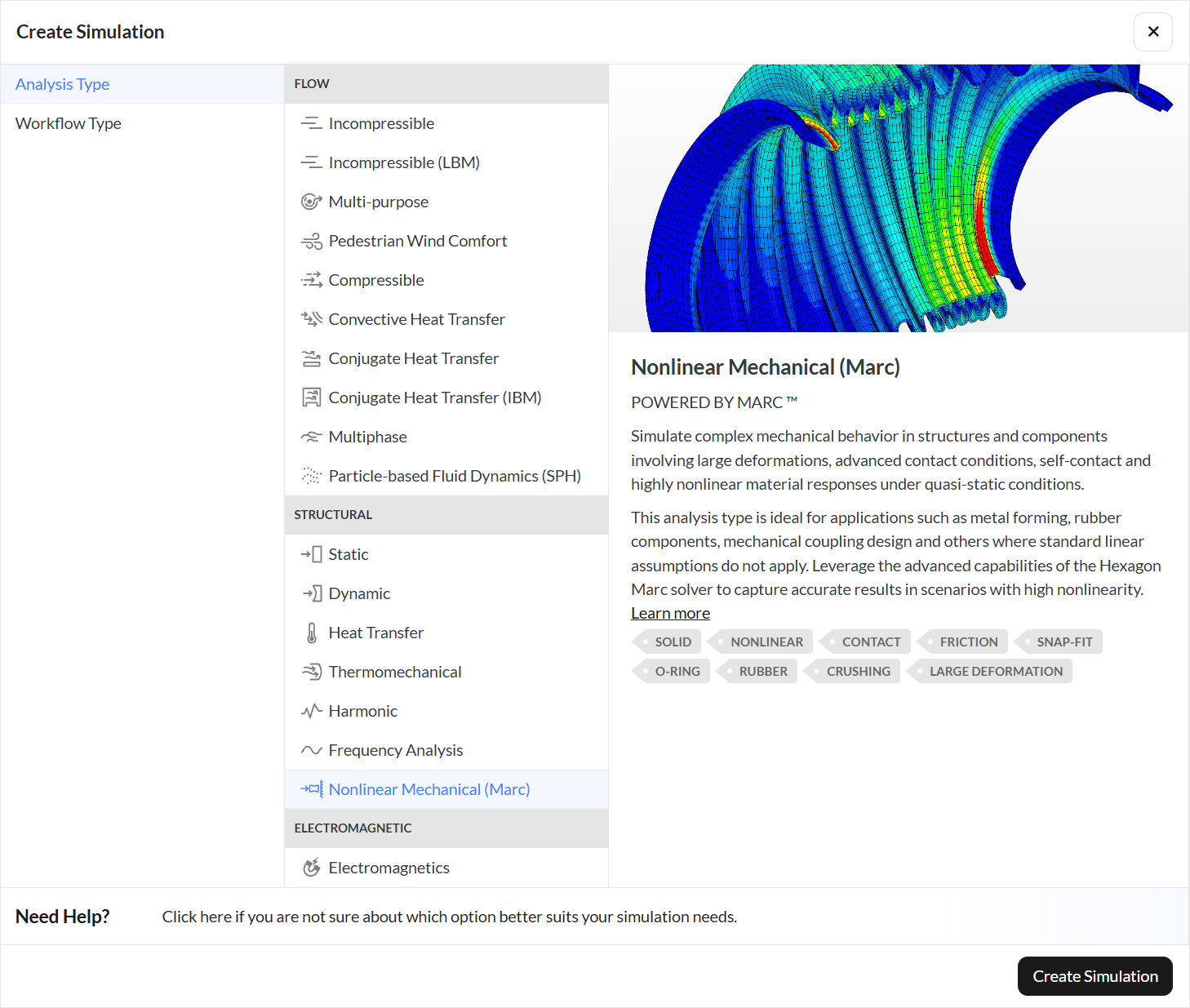
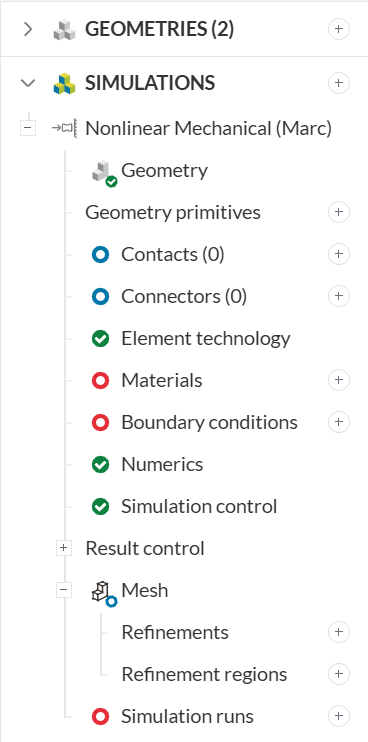
Choose the ‘Nonlinear Mechanical (Marc)’ analysis type and click on ‘Create Simulation’. This will lead to the Workbench with the following simulation tree and the respective settings:
Geometry
The Geometry section allows you to view and select the CAD model required for the simulation. It is important that the CAD model is well prepared to avoid any meshing or simulation-related errors. Find more details on CAD preparation and upload here.
Contacts
Here the user defines the contact interactions if the CAD is an assembly of multiple bodies. Glued, Touching, and Glued + Touching contact definitions are available. For more information about contacts, check this page.
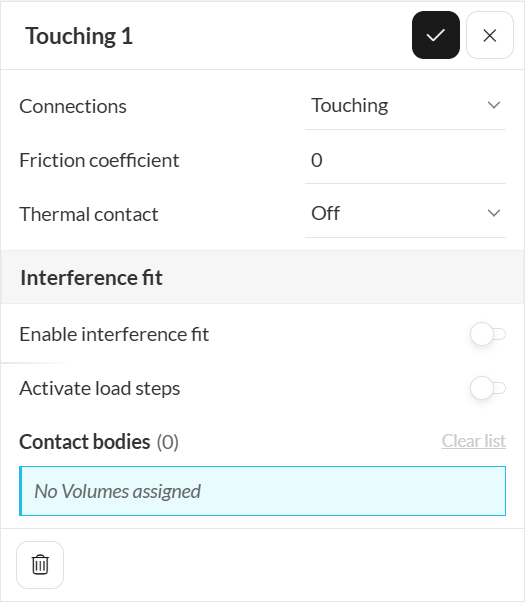
- Touching is similar to Physical Contacts (see here). They allow friction and separation, however, Touching contact has a body-based definition, that is, it allows many bodies in the same contact as well as self-contact by assigning a single body to the contact. The interference fit curve allows to model pre-stress conditions by including initial penetration in CAD. The activate load step option allows the user to define at which load step the contact takes place.
- Glued can be imagined as bodies glued to each other, that is, even if the bodies come in contact later during the simulation, they will be glued together and can not separate any more from that moment onwards. The rest of the characteristics are similar to the bonded contact described here.
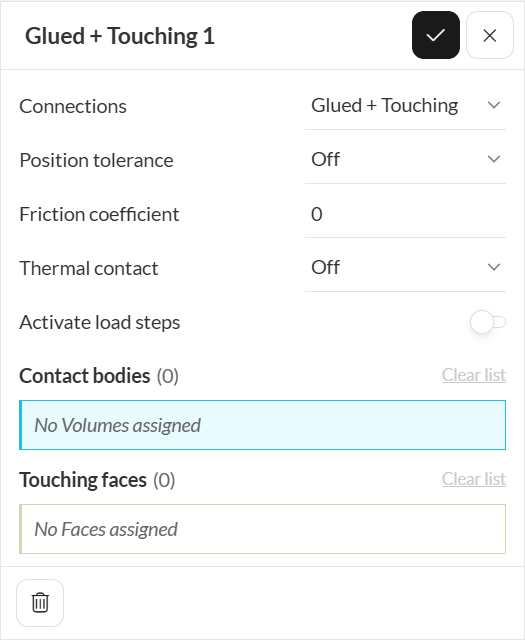
- Glued + Touching is essentially a combination of the Bonded and the Touching contacts into one. This is required if you have both a bonded and a touching contact between the same pair of bodies. You assign the bodies, which will be glued, and then the faces, which should be removed from the bonded definition, and those faces will be able to come into a touching contact during the simulation, with the given friction coefficient. The activate load step option allows the user to define at which load step the contact takes place.
Materials
To define the material properties of the domain, make sure to assign exactly one material to every part. Furthermore, you can choose the material behavior describing the constitutive law that is used for the stress-strain relation and the density of the material. Please see the materials section for more details.
Boundary Conditions
The Marc analysis supports several types of boundary conditions that help to add closure to the problem at hand by defining how a system interacts with the environment. The following Constraints and Load or Displacements are supported:
- Imposed displacement
- Pressure
- Point displacement
- Point load
- Bolt preload
- Temperature (Thermal)
- Surface heat flux (Thermal)
- Volume heat flux (Thermal)
- Convection & radiation (Thermal)
Automatic Load Ramping Option
The option of Load Ramping is available for most boundary conditions and helps to model complex conditions with robustness and ease. For example a constant max load is auto-ramped instead of defining a table or for complex cases with multiple load-steps; the loads of the individual loading-steps automatically ramp to their full values.
The feature works as follows:
- Automatic load ramping is always active.
- If Load Steps are not active, automatic load ramping is applied to all nonzero values over the full simulation time.
- If Load Steps are active:
– A linear ramp-up is applied at the first active load step.
– The value is released at the first inactive load step according to the selected release behavior.
– The behavior at the second to last active load steps depends on the boundary condition. - The option is available for: Imposed displacement, Pressure, Point displacement, Point load & Temperature. (*further conditions to be supported in the updates.)
For kinematic boundary conditions, a Reference position dropdown must be selected.
There are 2 options:
- Beginning of simulation
- Beginning of load step (Default)
For load steps, a Release Behavior dropdown must be selected.
There are 3 options:
- Instant
- Gradual
- Drive reaction force, for displacement and rotations only
These are further described in detail below:
Reference position:
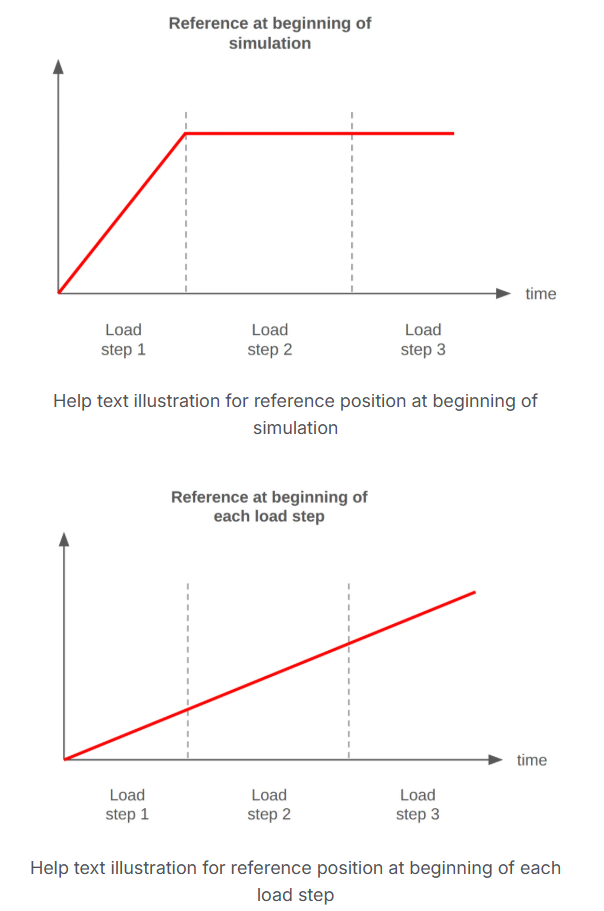
Define when the reference value for the kinematic condition is computed during the simulated time: at the beginning of the simulation or at the beginning of each load step. The target value of the automatic ramping is the difference between the input value and the computed reference. For instance, activating a zero displacement with reference computed at the beginning of the load step will keep deformation at its current value.
Release behavior:
Define the behavior of the boundary condition when it is deactivated. This behavior is applied during first load step where the condition passes from active to inactive. The condition can be instantly or gradually released, typically to avoid sudden changes that can result in divergence of the simulation. Additionally, for kinematic conditions, it is possible to control the release by driving the reaction force to zero, allowing the computation of residual deformations.
Imposed Displacement
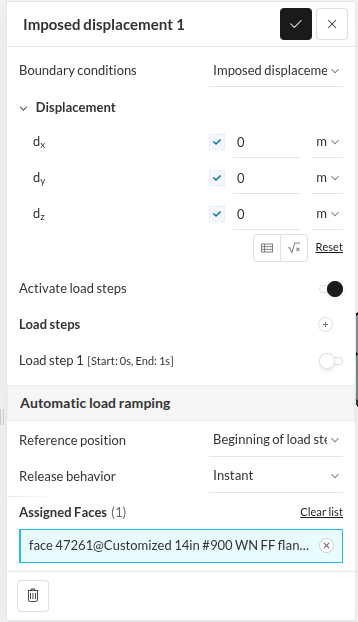
This is a boundary condition for the displacement vector variable. You can define prescribed values for the displacement of the assigned groups in every coordinate direction (x,y,z) or leave it unconstrained in order to let the entity move freely. Learn more.
Pressure and Follower Pressure
In the Pressure boundary condition for structural simulations, a distributed load is applied on a face (or set of faces). It is useful to model the loads applied through the surface in contact with fluids or other solids, where the resultant of the load is in the normal direction of the face. Learn more.
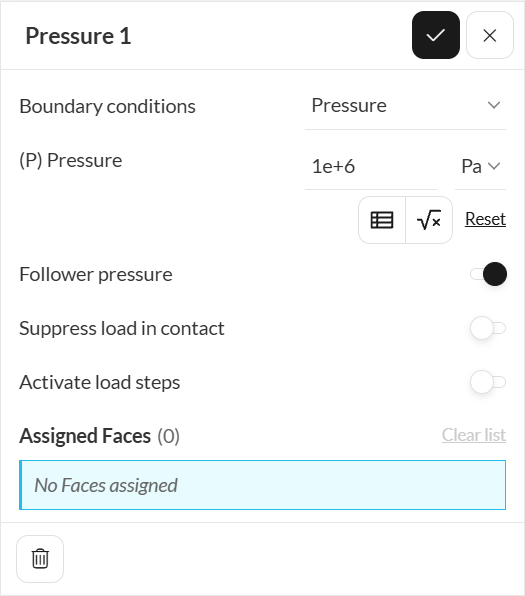
In contrast to the pressure boundary condition, the follower pressure is inherently nonlinear, as it will dynamically adapt during the simulation. Learn more.
Symmetry Plane
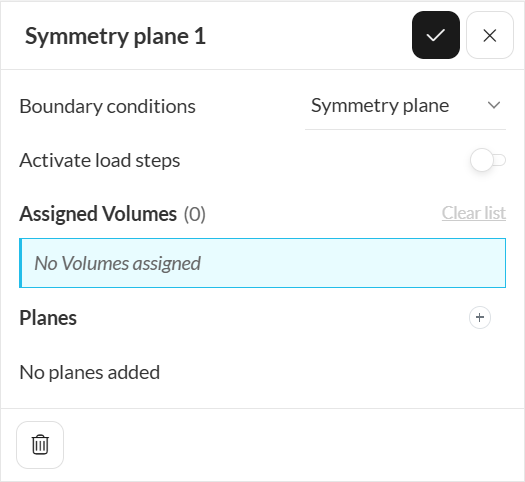
This boundary condition can be applied to enforce mirror-symmetry conditions on a structure, reducing the model’s size and computational time. This condition is imposed by creating planes (geometry primitives) and assigning those to the corresponding volumes which benefit from the symmetry condition.
Point Displacement
With the Point Displacement boundary condition, it is possible to guide the displacement of an edge, face or volume through a remote point. This approach is suitable when the geometrical features connected to the point are expected to deform and/or have a prescribed rotation. With MARC, this boundary condition has the following settings:
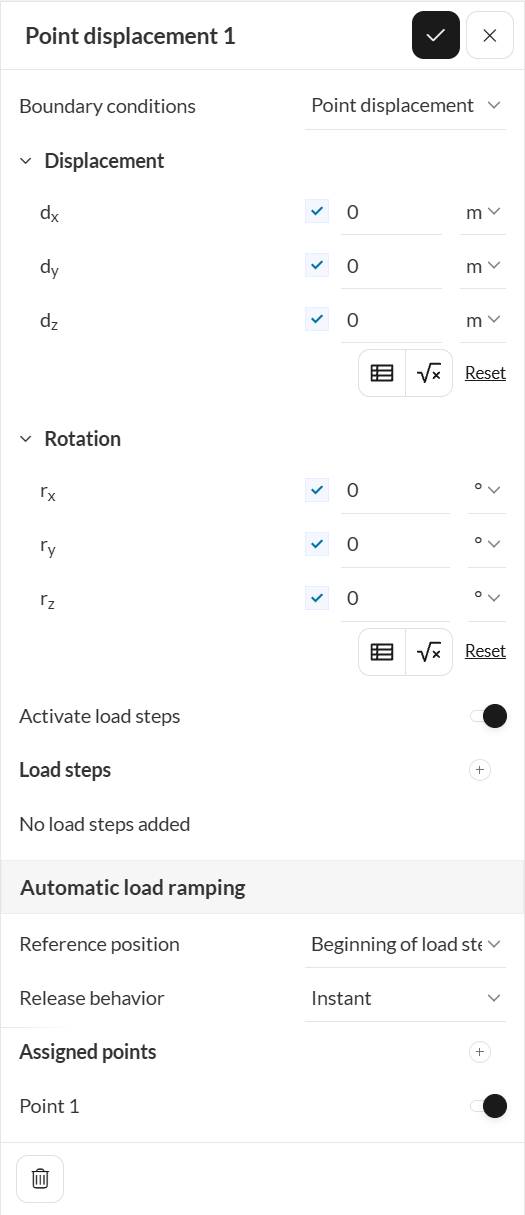
The parameters of the boundary conditions are:
- Displacement: the user can define the magnitude of translation in each cartesian coordinate. In case the displacement is defined in a coordinate, the coupling point-edge/face/volume is considered is free to move in that direction. Each displacement can be provided as a single value, a formula or a table.
- Rotation: similar to displacements, rotation angles can be prescribed around each cartesian axis. If values are not defined for a particular axis, then the coupling point-edge/face/volume is free to rotate around it. Furthermore, single values, tables and formulas can also be used to define the rotations.
Point Load
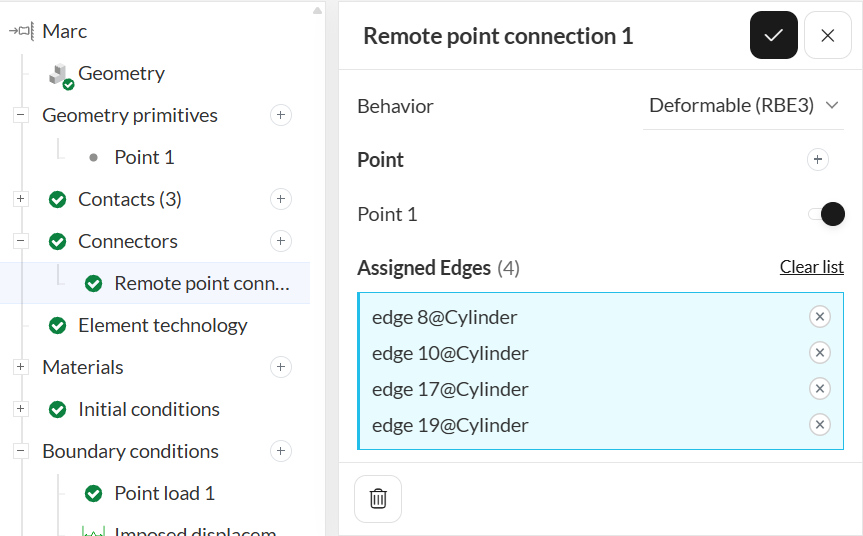
The Point Load boundary condition works similarly to the Remote Force boundary condition from our Static FEA module. In such case, the point load is applied to a remote point, which then is connected to an edge, face or volume with a rigid (RB2) or deformable (RB3) behavior. In the MARC solver, the definition of this condition is a three-step procedure. First, it is necessary to define values of forces and moments to be applied to a remote point:
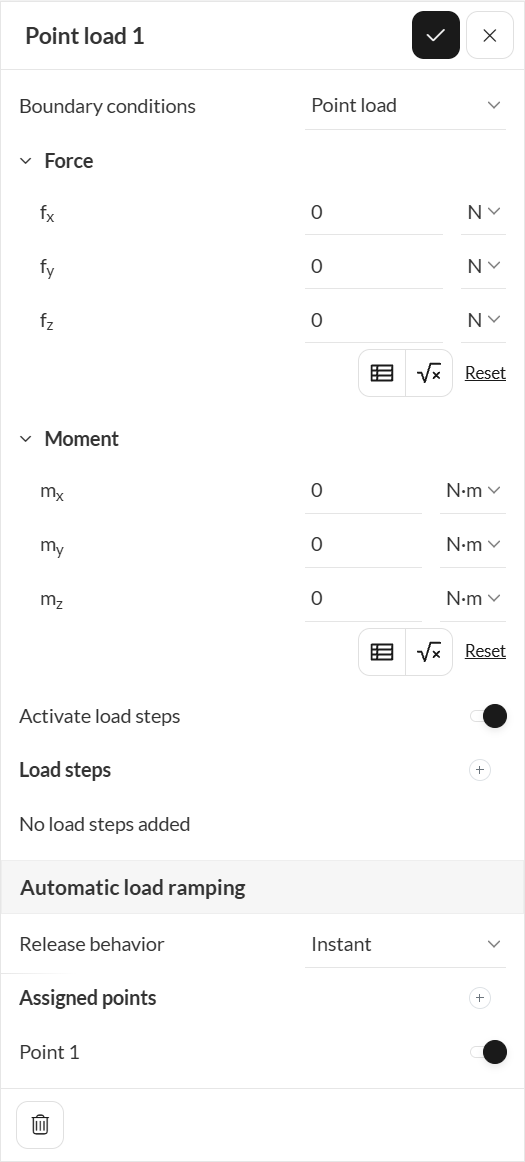
Second, the user needs to define the coodinates of the remote point:
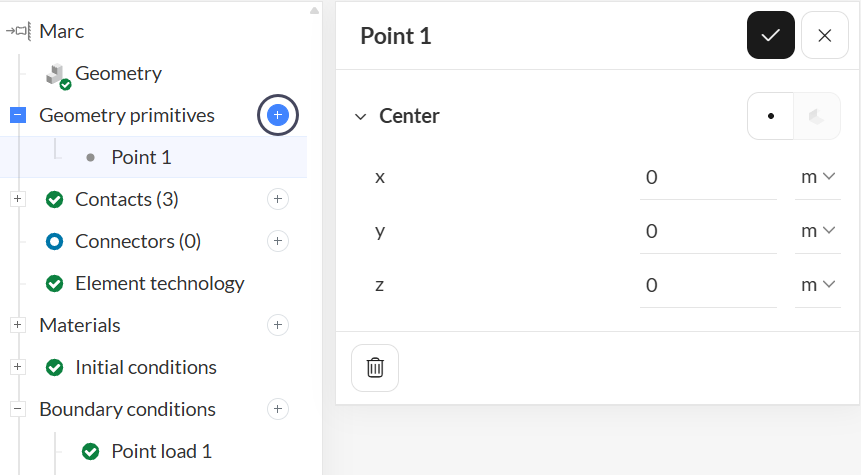
Third, the user needs to define a connector – this feature “connects” the point created to the corresponding edges, faces or volumes. Its behavior dictates if the assigned edges, faces or volumes are allowed to deform w.r.t to the point load applied.
Bolt Preload
The Bolt Preload boundary condition models the tightening of bolted connections. It applies a target clamping force (Load control) or a target axial shortening (Length control) to one or more bolt volumes. The preload is ramped in during the first active load step, and the bolt length is then locked in the following load steps while the operating loads are applied. The bolt axis is detected automatically from the geometry of each assigned volume.
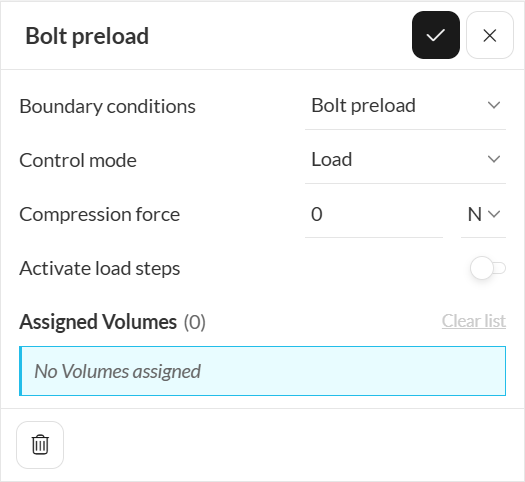
Use at least two load steps: one to apply the preload and one or more for the operating loads. Learn more.
Convection & Radiation
The convection & radiation boundary condition is visible when Thermal effects is enabled in the global settings.The user may define fixed values as well as tables and formulas.
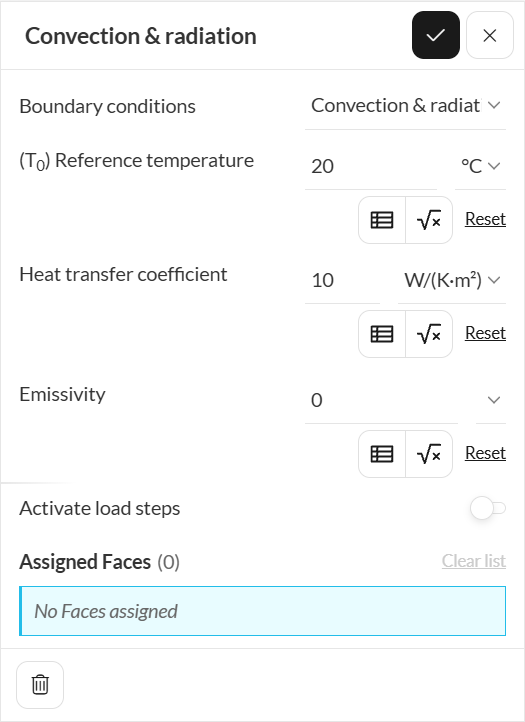
With a table definition, it is possible to define reference temperatures and heat transfer coefficients based on X, Y, and Z coordinates. This workflow allows the user to run a conjugate heat transfer simulation to obtain temperatures and heat transfer coefficients and use ParaView to obtain a table that can be used in the Marc analysis.
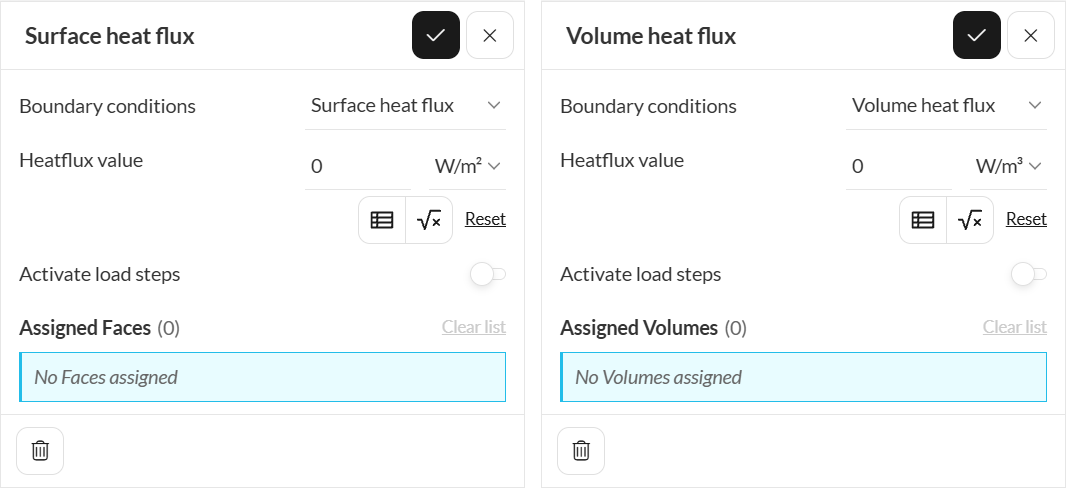
Surface and Volume Heat Flux
Both the surface and volume heat flux boundary conditions are only available when Thermal effects is enabled in the global settings.
With these boundary conditions, the user can define heat sinks or sources based on surface area or volume.
Numerics
Numerical settings play an important role in the simulation configuration. They define how to solve the equations by applying proper discretization schemes and solvers to the equations. They help enhance the stability and robustness of the simulation. Although all numerical settings are made available for users to have full control over, it is advised to keep them default unless necessary.
Numerical settings are recommended for advanced users but interested readers are encouraged to learn more about them through this documentation.
Simulation Control
The Simulation control settings define the general controls over the simulation. In this tab, a series of variables can be set. For example, the End time and Maximum runtime for the simulation can be defined.
For a complete overview of the parameters and their meaning, check this page.
Result Control
Under Result control, users can specify additional parameters of interest to be calculated. Monitors can also be defined. For example, one can set area and volume average controls, as well as point data for monitoring quantities on specific points. Additional solution fields such as displacement, strain, and contact result can be extracted too.
For more information about result controls, check this page.
Mesh
Meshing is the process of discretization of the simulation domain. That means we split up a large domain into multiple smaller domains and solve equations for them. For a nonlinear mechanical analysis, the standard algorithm is available. For more information about meshes, make sure to check the dedicated page.
Last updated: October 13th, 2026
Did this article solve your issue?
How can we do better?
We appreciate and value your feedback.