Bolt Preload
With the Bolt Preload boundary condition, an axial force is applied on one or more cylindrical bodies, and then the resulting length of the cylinder is fixed, all before the other load boundary conditions are applied to the model. This technique is useful to model the loads and interactions related to the tightening of bolted connections.
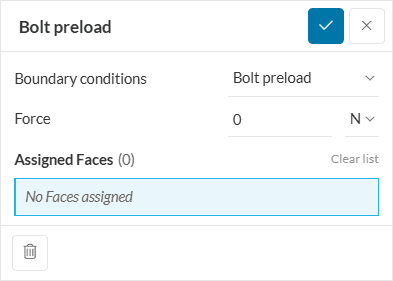
The parameters of the boundary condition are:
- Force: The preload force acting on each of the bolts.
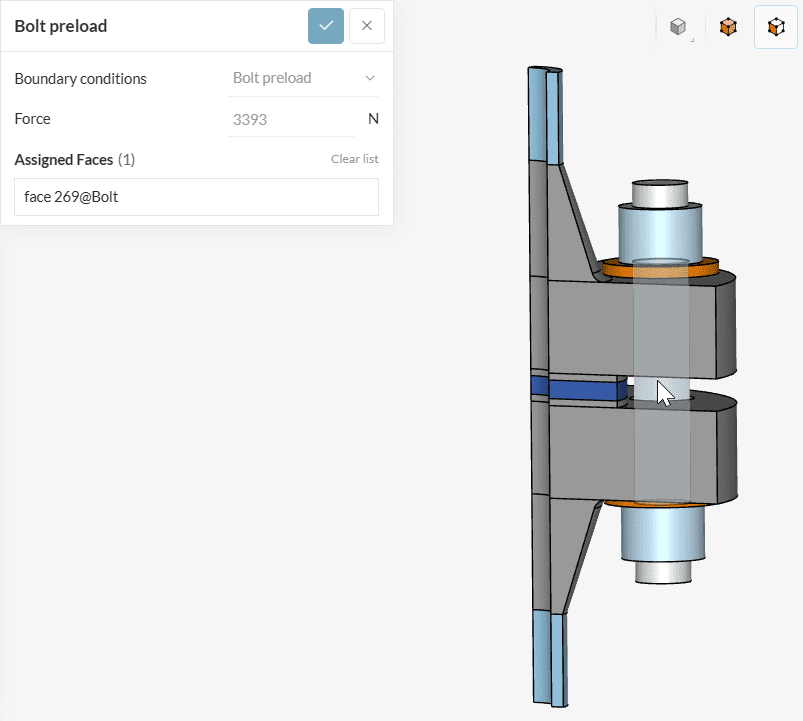
- Assignment: Cylindrical faces that represent the shanks of the bolts under the preload force. These cylindrical faces should be
- continuous,
- not be assigned to bonded contact definitions,
- can be assigned to physical contact definitions
See Figure 2 below for illustration:
Supported Analysis Types
The following analysis types support the usage of this boundary condition:
Bolt Preload Method
In bolted connections, the tightening torque applied on bolts creates an initial stress state both on the bolts and on the connected parts. This effect is called bolt pre-tension or bolt preload. As this stress state is present before the components start to perform their structural function, it is wrong to assume that all loads happen at the same time, creating a non-linear situation.
On the other hand, as this stress is created purely from the internal reaction of the bolt against the imposed stretch due to tightening, it can not be modeled by an external force or action.
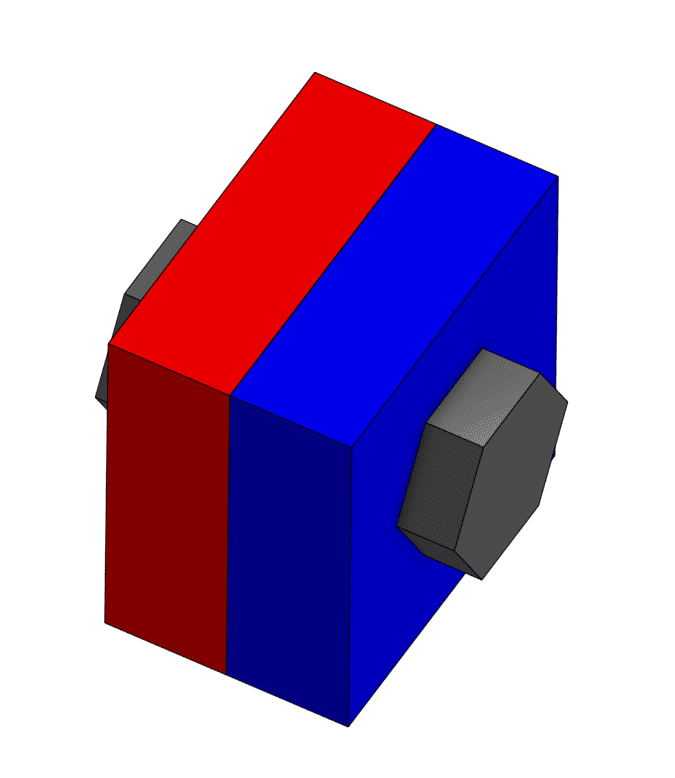
The methodology implemented in SimScale for the bolt preload boundary condition is known as the bolt force method, and works as follows:
- Model preparation: The bolt shank is split in half, creating two coinciding circular faces at the middle of the cylinder.
- Preload step 1: The force value is applied to the newly created cut faces. A structural simulation is performed using only this force, and the resulting displacement of the cut faces is measured.
- Preload step 2: Apply the measured displacements to the cut faces and fix the resulting distance between the faces with a rigid connection.
- Proceed to the structural analysis with the remaining loads and the modified model from the step above, which captures the effect of bolt preload.
Bolt Preload in Nonlinear Mechanical (Marc)
The Bolt Preload boundary condition is also available in the Nonlinear Mechanical (Marc) analysis type. It applies a target clamping force or a target axial shortening to one or more bolts, ramps it in during a selected load step, and then locks the bolt length for the rest of the simulation. This captures the initial stress state created by tightening, followed by the response of the bolted joint to operating loads.
Compared to the bolt preload in the linear structural analysis types described above, the Marc implementation differs in a few key points:
- Bolts are assigned as volumes, not as cylindrical faces. No splitting of the bolt shank is required.
- Two control modes are available: a prescribed force (Load) or a prescribed axial shortening (Length).
- With load steps, you control when the preload is applied and when the bolt is locked, open, or re-tensioned.
Parameters
To add a bolt preload, navigate to Boundary Conditions in the simulation tree, click the + button, and select Bolt Preload. Then define the following parameters:
| Parameter | Description |
|---|---|
| Control mode | Defines how the preload is imposed. Select Load to prescribe a force, or Length to prescribe an axial shortening of the bolt. |
| Compression Force | Available in Load mode. The preload force of each bolt, in \(N\). This is the force that clamps the connected parts together, with the bolt itself in tension. The default value is 0 \(N\). |
| Axial Shortening | Available in Length mode. The shortening imposed along the bolt axis, in \(m\). The default value is 0 \(m\). |
| Activate load steps | When toggled on, select the load steps in which this boundary condition is active. The selected load steps must be contiguous. |
| Assignment | One or more bolt volumes. Each assigned volume is treated as an individual bolt, and the same conditions apply to each of them. |
You do not need to define a bolt direction. The bolt axis is determined automatically from the geometry of each assigned volume, along its longest dimension. Therefore, bolts can have any orientation and do not need to be aligned with the global coordinate system.
Preload and Load Steps
The bolt preload is applied in two phases over the active load steps of the boundary condition:
| Load step | Bolt behavior |
|---|---|
| First active load step | Preload: the Compression Force or Axial Shortening is ramped from zero to the specified value. |
| Following active load steps | Locked: no further shortening is imposed. The bolt keeps its preloaded length and resists the external loads, so its force changes with the operating loads. |
| Load steps where the boundary condition is not active | Open: the bolt does not resist external loads. |
If Activate load steps is toggled off, the simulation runs with a single load step. In this case, the force or shortening is ramped over the whole simulation at the same time as all other loads, and no separate locking phase takes place.
Recommended Setup
For a typical bolted joint, use at least two load steps:
- Load step 1 – Tightening: apply only the bolt preload.
- Load step 2 and onwards – Operation: apply the operating loads, such as pressures, imposed displacements, or thermal loads. The bolt preload boundary condition stays active on these steps so the bolt remains locked.
To do so, toggle on Activate load steps and select load steps 1 to the last load step.
Note
To keep a bolt at a fixed length in a load step without adding any shortening, use Length control with an Axial Shortening of 0 \(m\).
Multiple Bolt Preloads on the Same Bolt
You can assign several bolt preload boundary conditions to the same volume to change the bolt condition during the loading history, for example to tighten a bolt in two stages or to open it in a later load step. The active load steps of these boundary conditions must not overlap.
Setup Checks
The following messages help you avoid unintended bolt behavior:
| Type | Condition | Meaning |
|---|---|---|
| Warning | Load steps are not used | Only the bolt force or shortening is ramped, together with the other loads. Use at least two load steps to apply the preload before the operating loads. |
| Warning | Some load steps are not active for a bolt preload | In those load steps, the bolt is open and does not resist external loads. |
| Error | Several bolt preloads are active on the same volume in the same load step | Adjust the active load steps so that they do not overlap. |
| Error | The active load steps are not contiguous | Select a continuous range of load steps, or split the definition into several bolt preload boundary conditions. |
Modeling Tips
- Model each bolt as a separate solid volume. Because the bolt axis is detected from the longest dimension of the volume, make sure the bolt is clearly longer than its diameter.
- Bolt preloads can be combined with physical contacts, symmetry planes, imposed displacements, and other loads. Use contacts between the bolt head, nut, and clamped parts to capture the load transfer realistically.
- Elastoplastic materials are supported for the bolt volumes.
- To verify the preload, evaluate the average axial stress in the bolt shank at the end of the preload step. Multiplied by the shank cross-section area, it should match the specified Compression Force.
Last updated: September 30th, 2026
Did this article solve your issue?
How can we do better?
We appreciate and value your feedback.