Revit to SimScale Workflow
The Revit to SimScale Workflow is described in 3 main steps that are listed below:
1- Clean and Prepare in Revit
2- Export in ASIC/ .SAT format from Revit
3- Import to SimScale and finalize for Simulation
It is sensible to simplify most Revit models before attempting a CFD analysis.
1. Clean and Prepare model in Revit
The first step is to “Check Model & Define Scope”. Decide what to include for analysis from the below example list :
– Main Components
– External furniture
– Minor furniture
– Insignificant internal detail
– Complex components
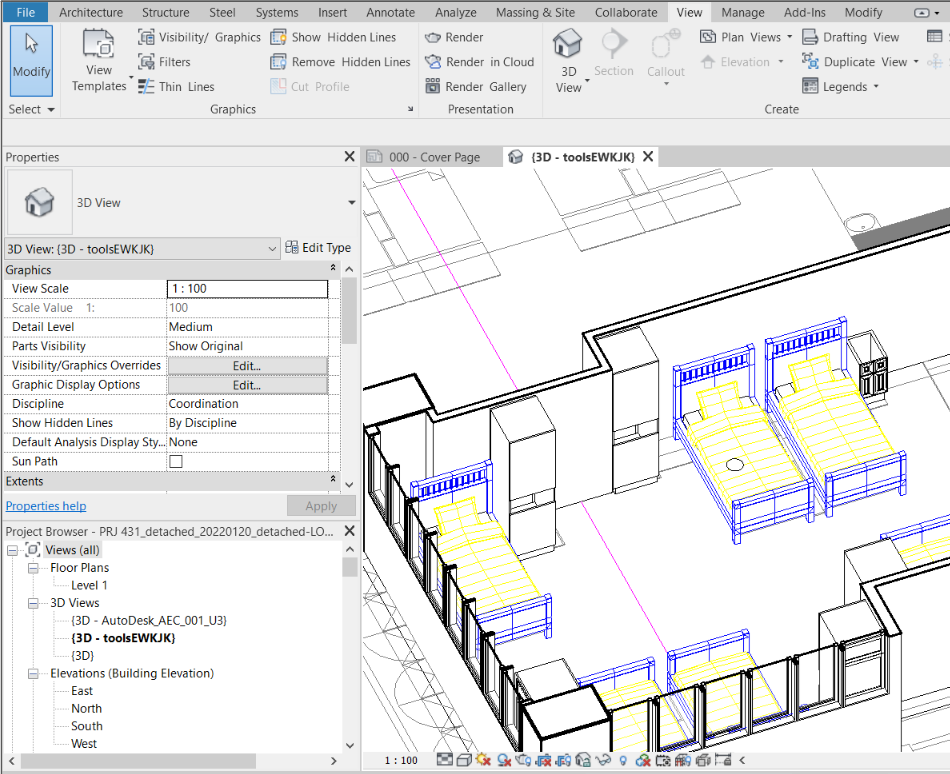
The second step is to use the Visibility Graphics Override (vg) to simplify and suppress groups.
– Type keyboard “vg”
– Turn off useless groups and components
– Keep essential groups ON
The Essential groups may include e.g Ceilings, Columns, Curtain panel, Curtain system, walls, Doors, Ducts, Duct fittings, Floors, Mass, Roofs, Parts, Windows
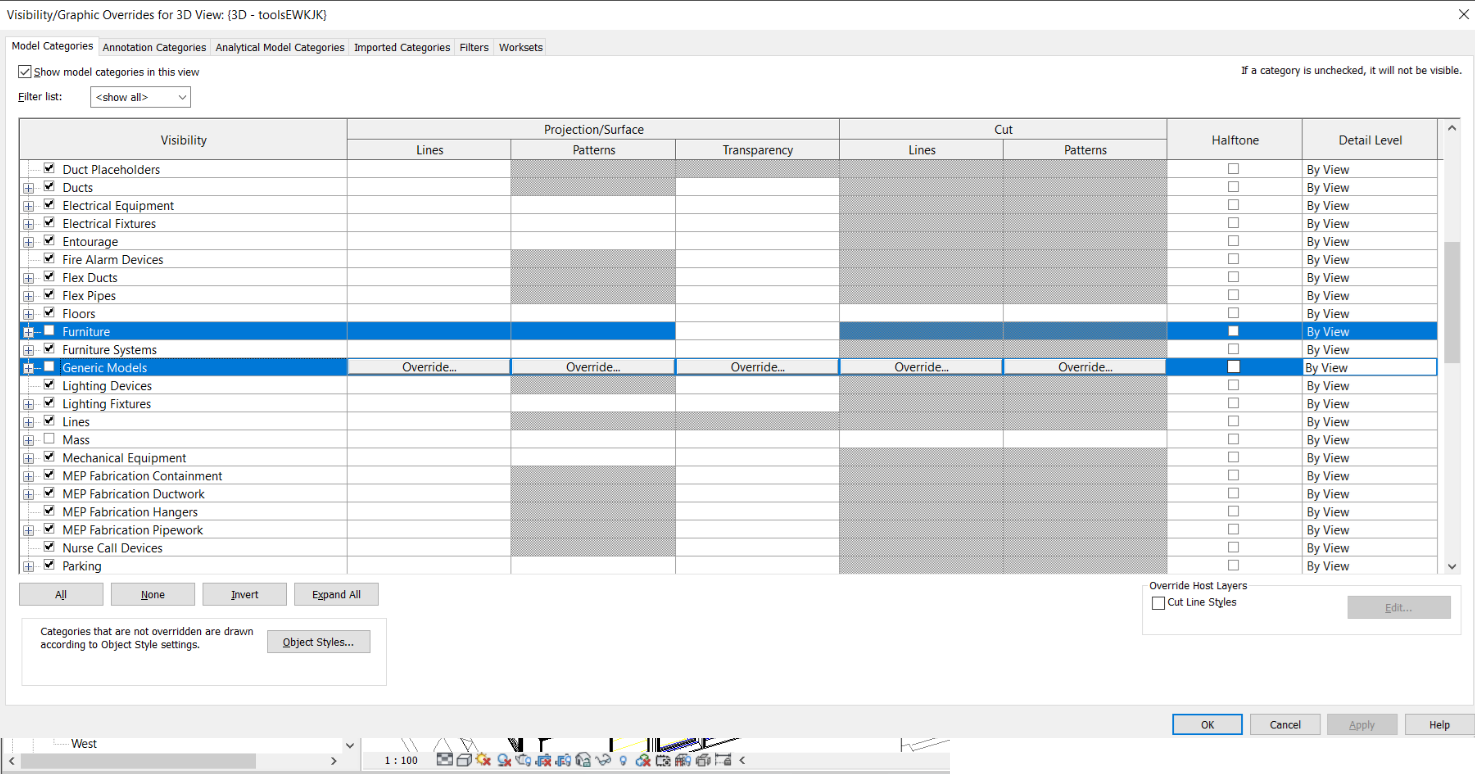
Turn OFF annotations
– Type keyboard “vg” again and click the Tab: Annotation Categories and Uncheck All
Use section box to export only a Section of the full model in Revit.
2. Export in ASIC/ .SAT format from Revit
- Click ‘File’
- ‘Export’ > ‘CAD Formats’
- “ACIS (.SAT)”
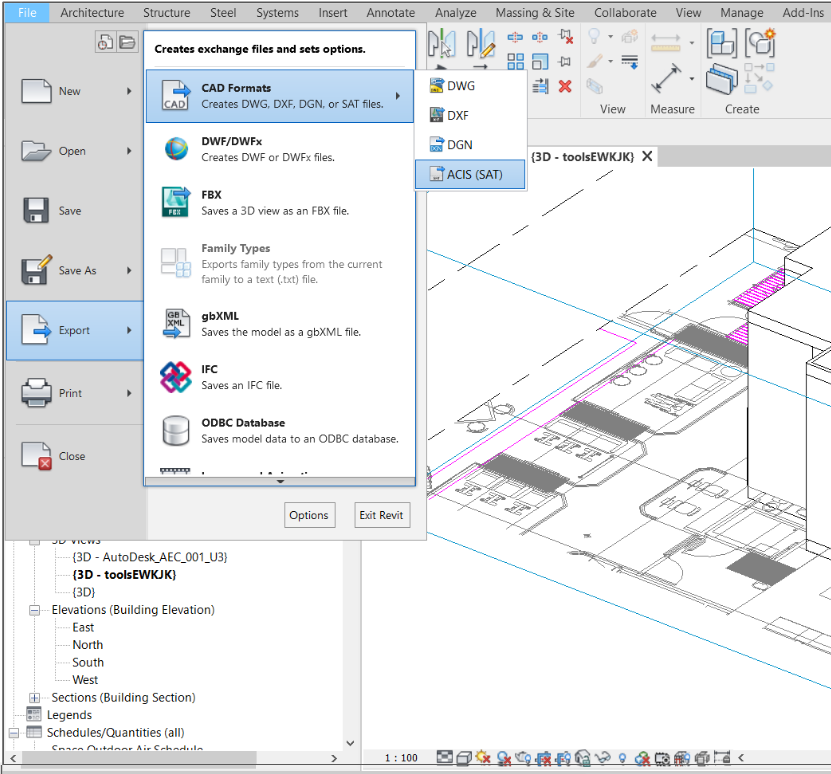
3. Prepare model for Simulation in SimScale CAD Mode
Click on the model to edit in CAD Mode, see details Here on how to ?
Main preparation steps:
– Delete parts
– Replace parts
– Close gaps
– and the final step to Create Flow Volume
Here is a short (3 minute) guide on how to do the main steps: