
Question
How to adjust the legend range with custom maximum and minimum values?
Solution
By default in SimScale’s post-processor and mesh quality viewer, the maximum and minimum range of the legend are set automatically, based on the biggest and smallest cell value of the selected parameter in the whole computational domain.
To showcase the legend customization workflows, we will inspect the results of the Internal Thermal Comfort of a Car tutorial. In this project, the largest velocity values are observed on the vents, which act as inlets.
In case we are interested in analyzing the velocity field on a cutting plane away from the vents, the default velocity range may not be the most insightful configuration. The image below shows the results with the default velocity range, resulting in most of the cutting plane being blue:
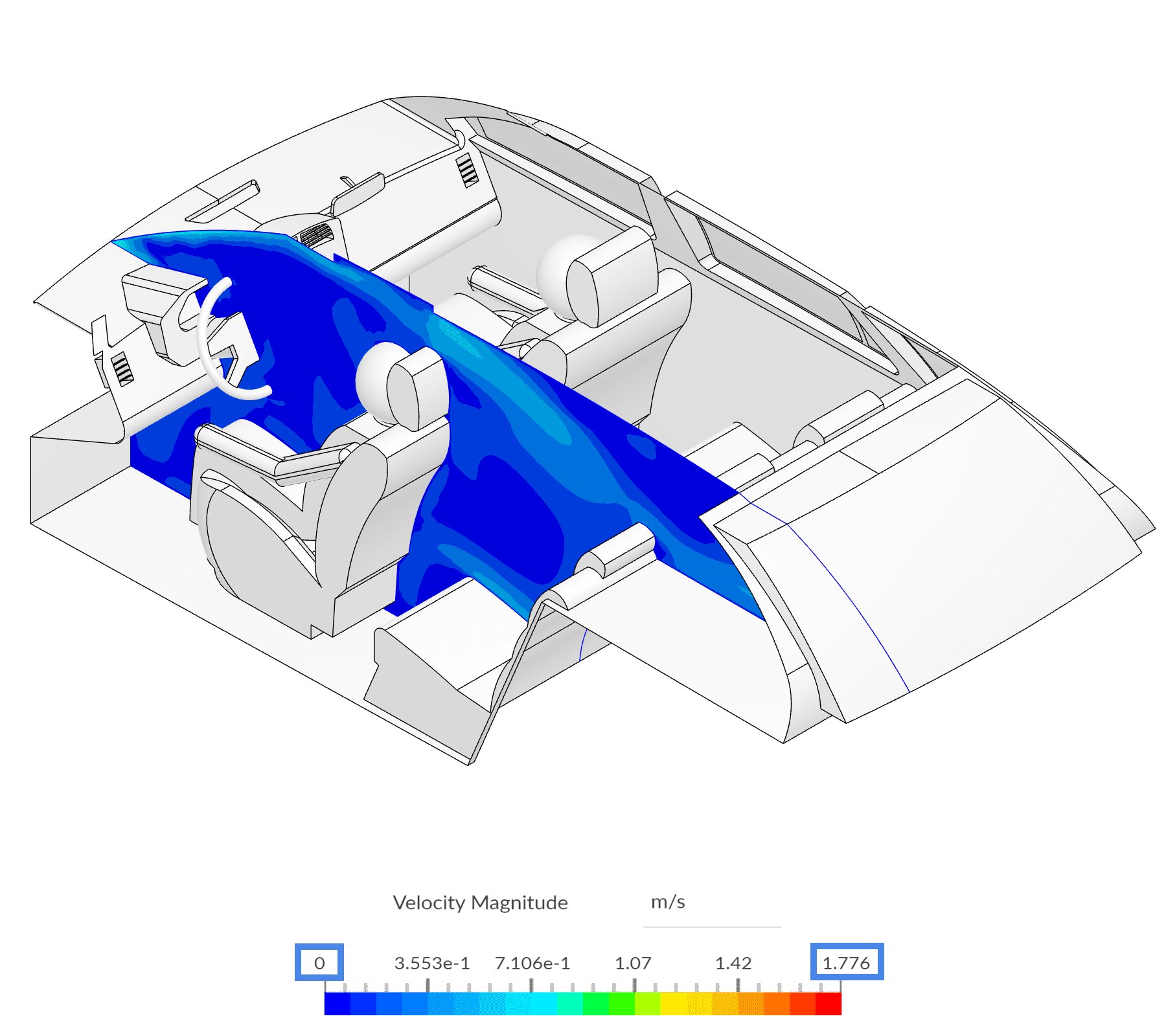
Based on the cutting plane above, one option to improve the visualization is to reduce the upper bound of the legend bar. Both the upper and lower thresholds can be edited by clicking on them and inputting new values of interest:
Furthermore, you can also slide the two arrows under the scale to adjust the coloring dynamically:
Please note that after changing the legend ranges manually, the new bounds will persist if you:
- Create new filters
- Exit and re-load the post-processor
- Play an animation
- Hide or unhide parts
To scale the legend back to the default settings, you can right-click on the legend bar and select ‘Scale to full range’:
Note
If none of the above suggestions did solve your problem, then please post the issue on our forum or contact us.