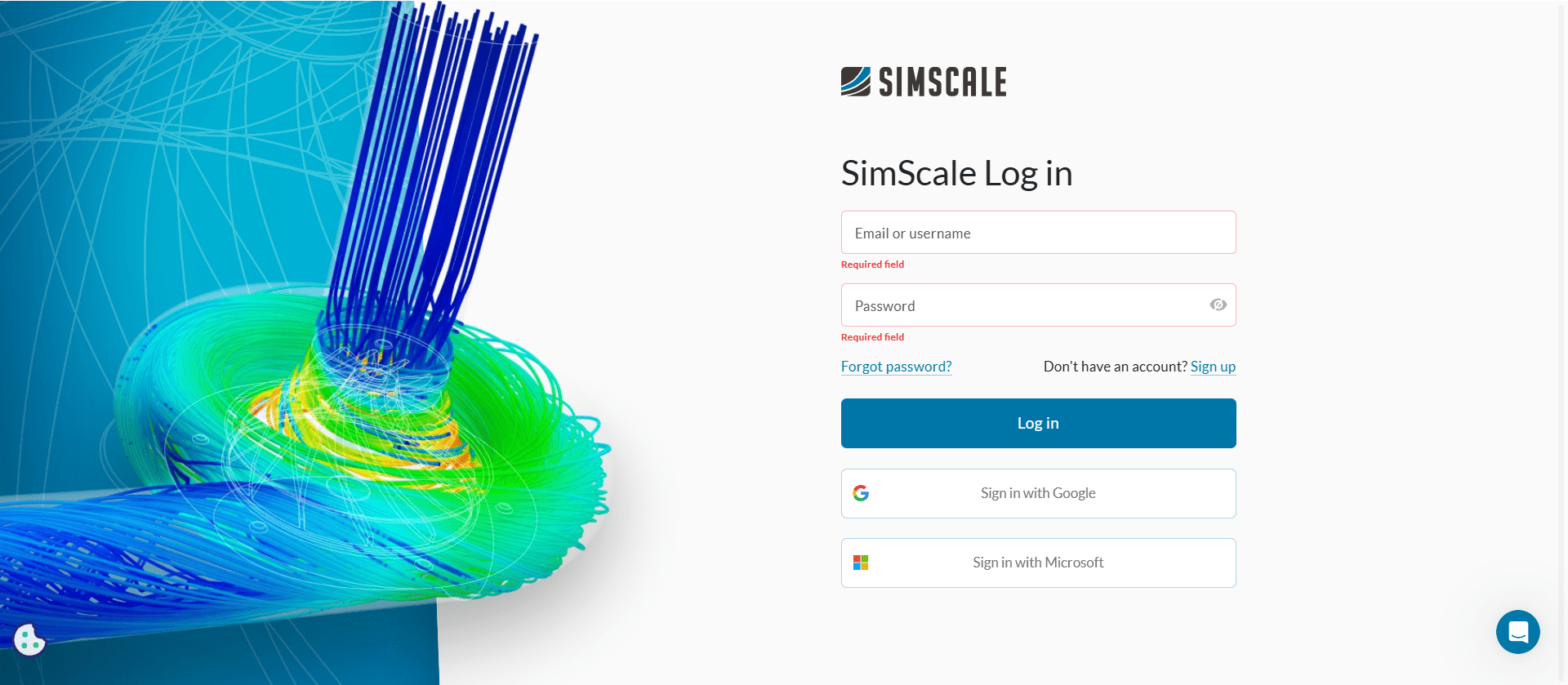
When a user is logging into SimScale they will automatically be guided once they choose to log in either via Google or Microsoft (this is sometimes also called Two Factor Authentication). The user needs to click on either ‘Sign in with Google’ or ‘Sign in with Microsoft’ and authenticate.
Note
For some corporate organizations, when using Microsoft Single Sign-On (SSO) for the first time, there is one additional step required before access is fully granted. An administrator must approve the Software application within Microsoft Entra ID (formerly Azure Active Directory). This approval allows the application to access the necessary permissions to authenticate users via SSO.
To complete this step, the admin should review and approve the consent request for the application. Detailed instructions on how to do this can be found in the official Microsoft documentation.
If a user signs in with an SSO provider and an account with the same email already exists, the system automatically links them in the background, ensuring seamless access without creating duplicate accounts.
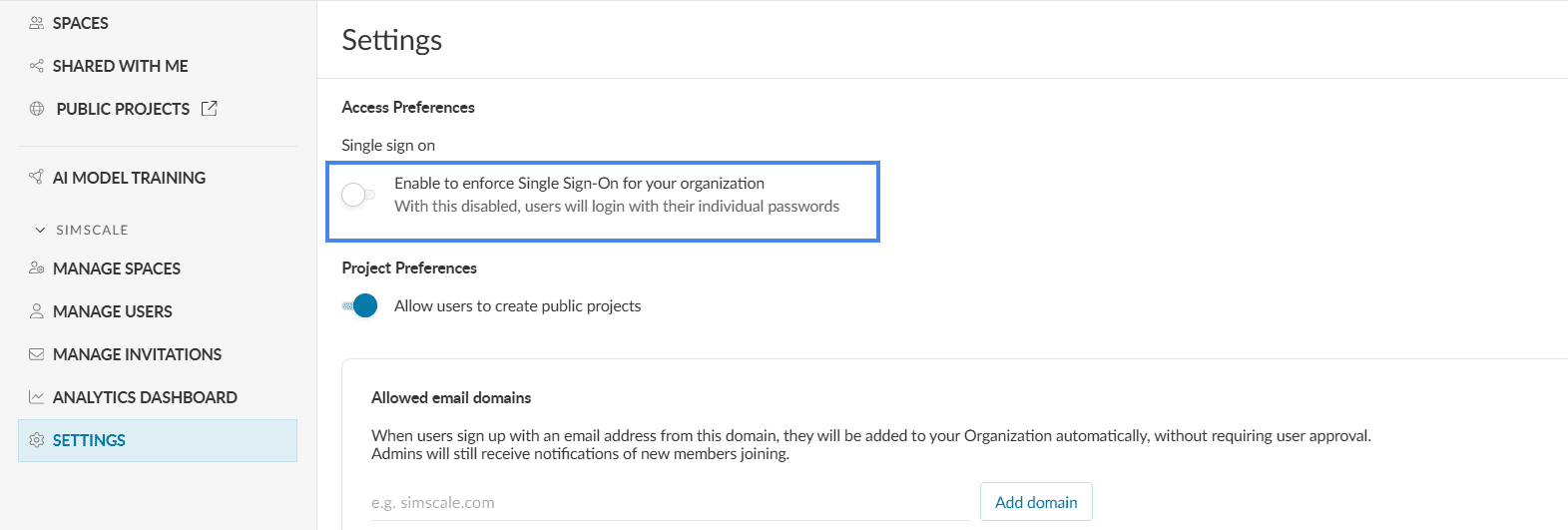
Disable Password Login
As an organization admin, one can enable/disable SSO login for its users under organization-settings> Acces Preferences> Single sign on.