Documentation
To enhance user experience and expand workflow possibilities, SimScale enables users to import simulations between projects. This feature not only simplifies organizing simulations but also streamlines the creation of new simulations through reusable templates. By allowing seamless movement and template creation, SimScale optimizes project organization and workflow efficiency.
As part of this workflow, when creating a simulation, SimScale allows you to either select an analysis type to set up a new simulation or to import a simulation already set up and/or ran into the existing project.
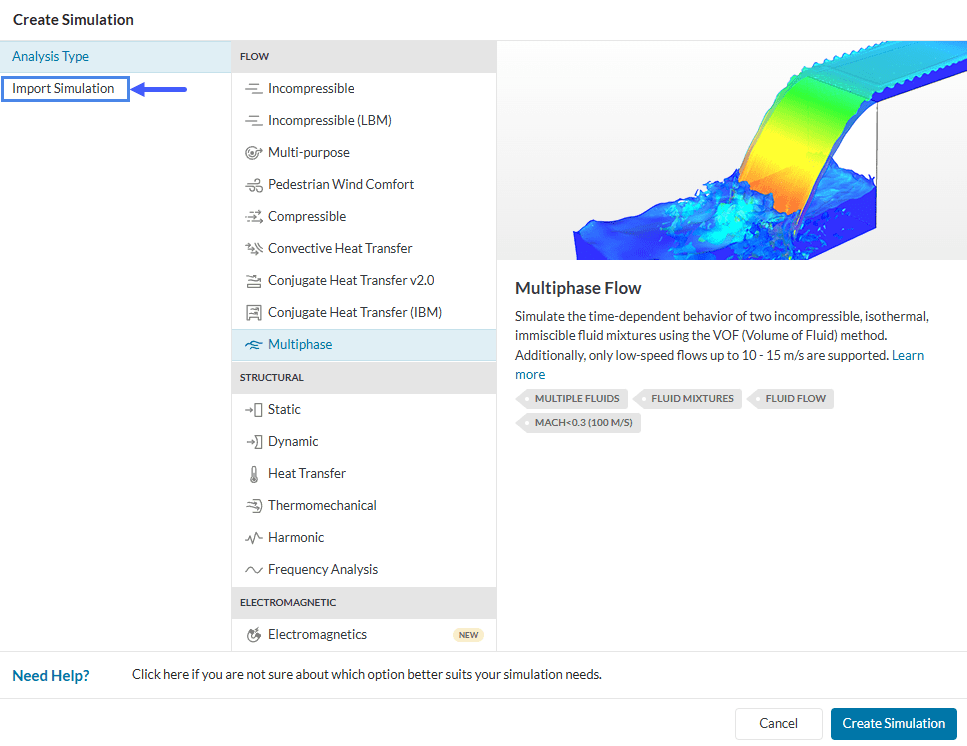
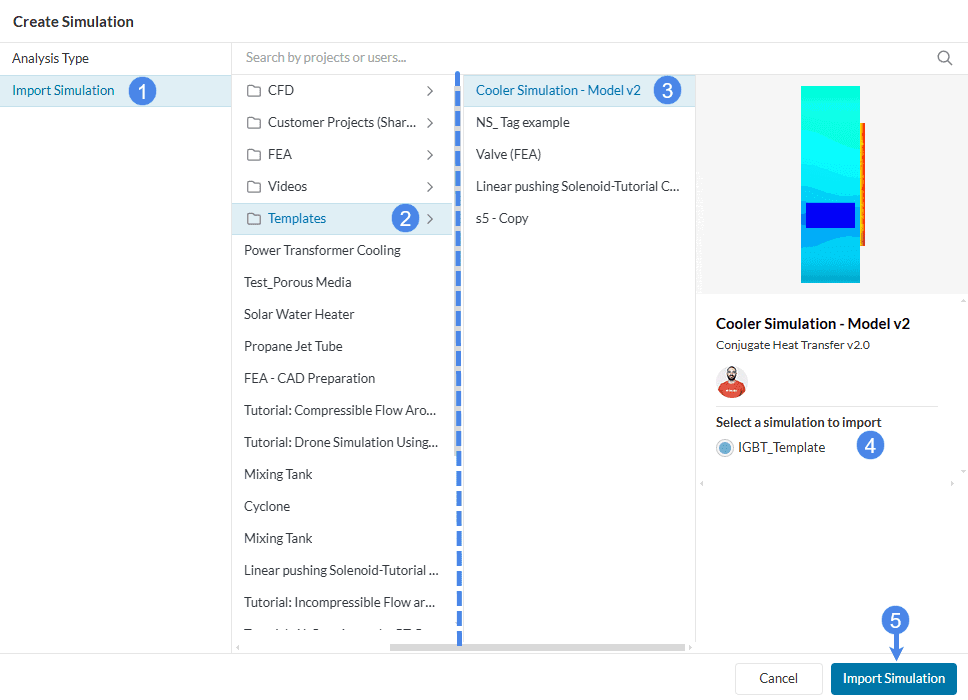
Inside the Create Simulation window click on the ‘Import Simulation’ feature. This allows you to select a simulation from another previously created project instead of selecting an analysis type. Access to the simulation to be imported can be done through multiple layers, meaning first you access folders, then the projects within the folders, and then the simulations within the projects.
Note
When a simulation is imported into another project, the original simulation remains intact, and the platform generates a copy of this simulation in the new project.
One of the advantages of using the Import simulation feature is that one can create simulations as templates for a specific type of application, for example, it is possible to create a simulation model for analyzing centrifugal pumps and reuse the setup of this simulation in different centrifugal pump projects, keeping the same setup pattern, which allows for more automation and less user interference during the setup of the models.
Animation 3 shows how to work with a template. A flowchart for working with this type of approach consists of:
Last updated: November 19th, 2024
We appreciate and value your feedback.
Sign up for SimScale
and start simulating now
