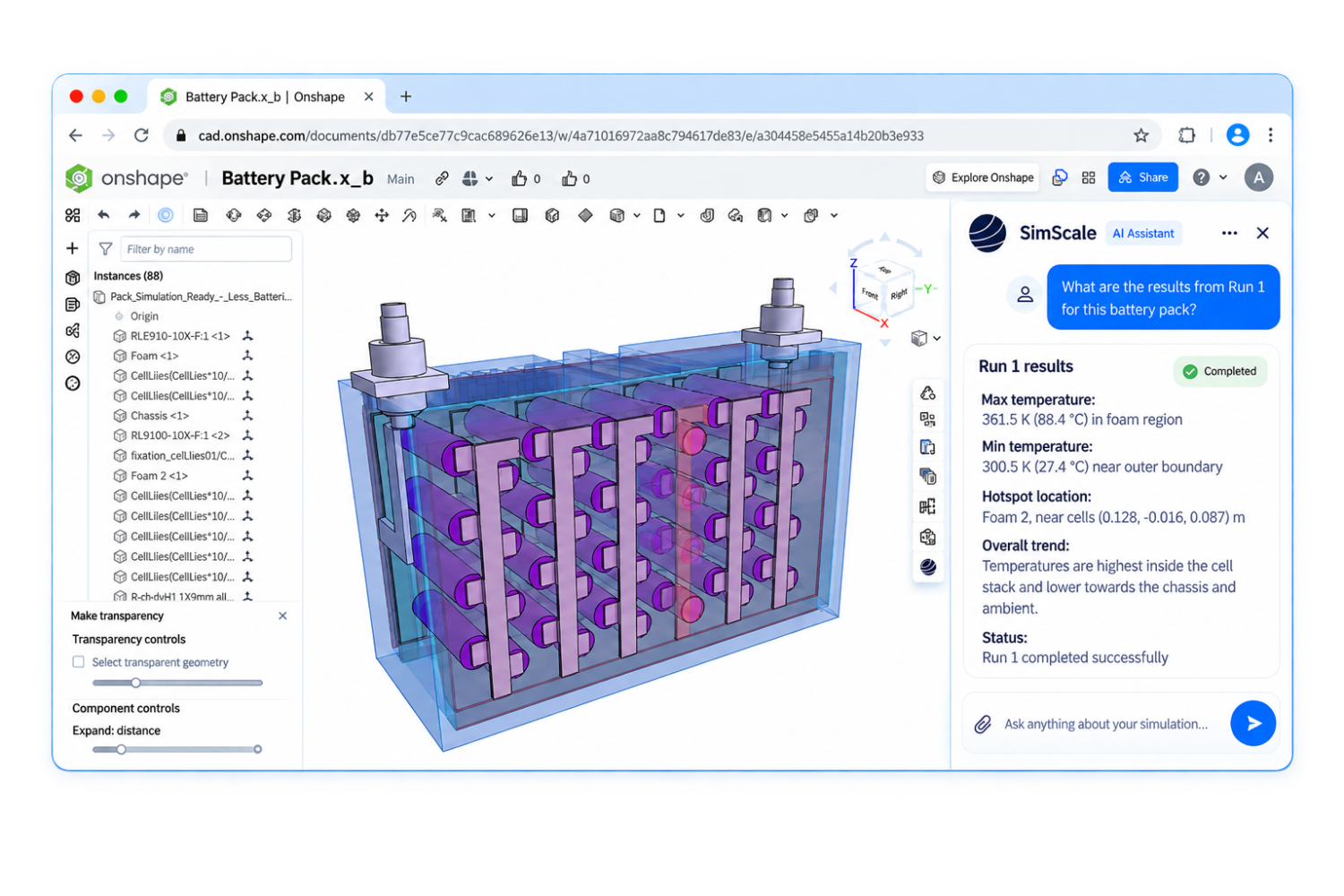

Onshape has no built-in CFD. Onshape Simulation covers structural linear static and modal analysis, which gives you stress, strain, natural frequencies, and mode shapes. Fluid flow, thermal, and nonlinear structural work happen in a connected simulation tool.
SimScale is one of two simulation partners listed in the Onshape App Store. It connects to your Onshape documents directly, so you pick an assembly or part in the SimScale workbench and simulate it without exporting a STEP file. You get CFD, thermal, FEA, and electromagnetics on the same geometry.
The Onshape CAD tool is a marvel. The ability to create, edit, review, manage and share parametric 3D CAD models from inside a browser, and thus from anywhere with an internet connection, changed how CAD gets done for engineers and industrial designers. Add to that the continuous updates and flux of new features (no more service packs or software versions), the custom features and public models libraries, which you can easily reuse, and the user forum, and you have so much learning material that it feels like beginning with CAD all over again. The list of Onshape’s benefits goes on and on, but it is missing one essential thing.
If you are reading this, chances are you already know and love Onshape, its advantages, benefits, and workflow. But if you also happen to come from a traditional desktop CAD tool, you might be missing an important feature: simulation. Whether you need to predict deformations, stress levels, heat performance, or fluid flow, simulation has become an essential part of the design process. Onshape’s built-in Simulation covers structural stress and vibration, so for CFD or nonlinear FEA, what can you do?
Well, let me introduce you to SimScale. Built with many of the same core ideas and features as Onshape, SimScale does for computer-aided engineering (CAE) what Onshape did for computer-aided design (CAD). Cloud-native, with compute you rent by the run instead of buying a workstation? Check. Access from anywhere through the browser? Check. Public learning resources? Check. Reference projects ready to reuse and modify? Check. Access to experts through the forum? Check. And, just like Onshape, you can start on the free Community plan and later upgrade to a paid plan for private or more demanding projects.
To learn more about the power and value of Onshape and SimScale, especially when coupled with design optimization feedback, download our whitepaper:
Onshape, ESTECO and SimScale: design, simulation and shape optimization
See how parametric CAD, cloud simulation and optimization work together on one design loop.
Does Onshape have CFD?
No. Onshape Simulation supports structural linear static and modal analysis only. Onshape’s own documentation states that it offers “stress, strain, natural frequency, and mode shape calculations.” There is no fluid solver, no thermal solver, and no nonlinear capability in the native tool.
To run CFD on an Onshape model you connect a cloud simulation platform to your Onshape account. SimScale and Luminary Cloud are the two simulation partners listed on Onshape’s app integrations page. With SimScale you get cloud-native CFD simulation on the same geometry you designed in Onshape, plus structural analysis, thermal, and electromagnetics.
Here is what each tool covers.
| Analysis type | Onshape Simulation | SimScale |
|---|---|---|
| Linear static stress | Yes | Yes |
| Modal, natural frequency | Yes | Yes |
| Nonlinear statics, plasticity, contact | No | Yes |
| Dynamics, harmonic response | No | Yes |
| Thermal and thermomechanical | No | Yes |
| Incompressible CFD | No | Yes |
| Compressible CFD | No | Yes |
| Conjugate heat transfer | No | Yes |
| Multiphase flow | No | Yes |
| Electromagnetics | No | Yes |
The full list of analysis types covers the solver options in detail.
You’ve got my attention, so how do I start?
The first thing you need to do is to create a SimScale account and log in. You will be directed to your dashboard page, where you can access all your simulation projects:
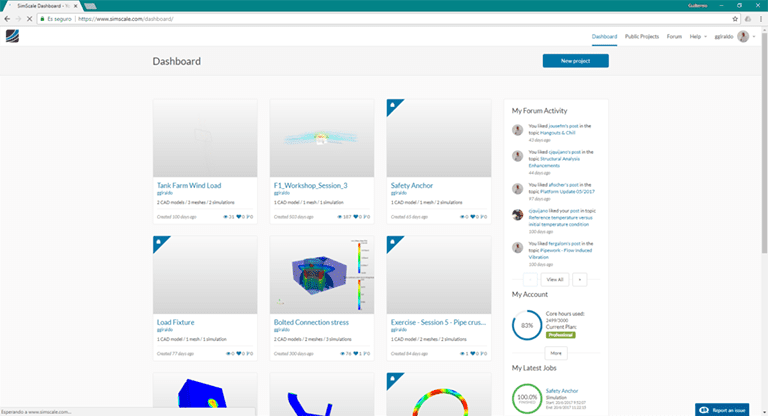
If you are new, your dashboard should be blank. You can see I have a few public and private projects (the ones with the lock icon). Go ahead and create a new project with the New Project button. Fill in the data and hit Create Project:

Select the project and you will be taken to the project summary page. Here you can preview geometries and results, and interact with the comments thread. Select Open to open the simulation workbench:
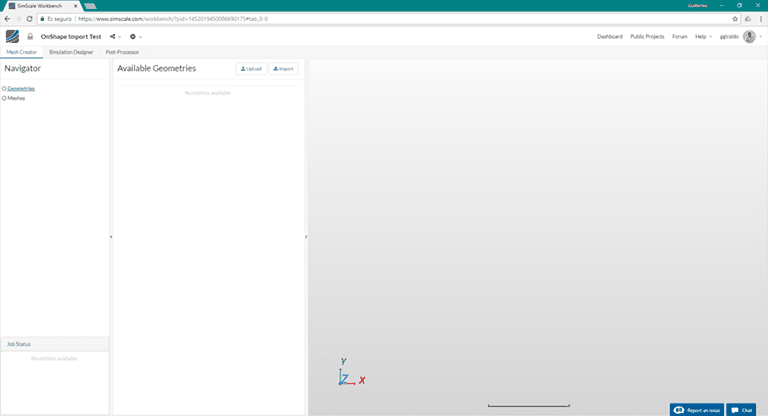
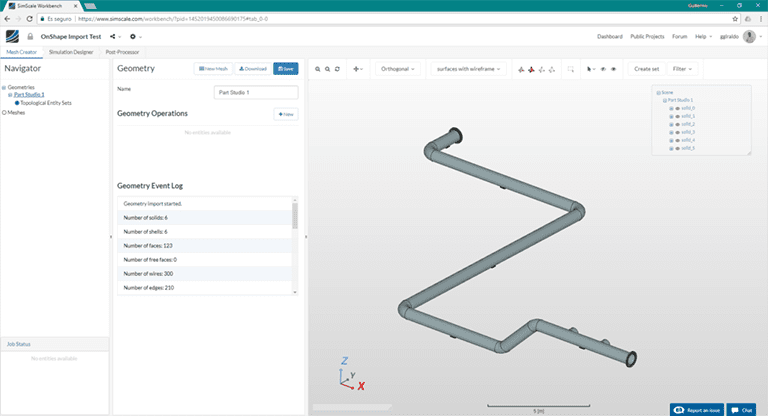
This is where the fun begins. The Import button opens the Onshape Connector App, where you can browse all your documents and select what assembly, multi-body part, or single body you want to import for your simulation:
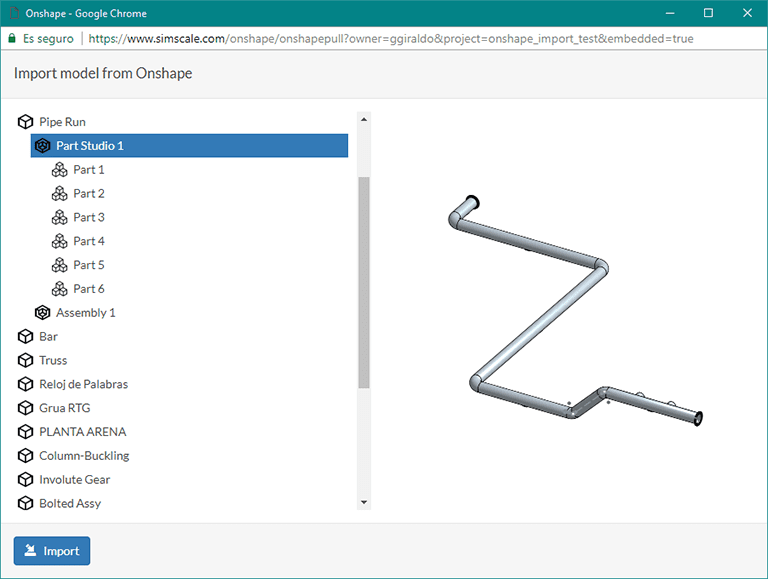
Click Import and voilà, your 3D model created in Onshape is ready to be simulated in the cloud with SimScale:
It is that simple. With a few clicks, we can import a 3D geometry directly from Onshape to the simulation workbench. You can add as many models as you want to the simulation project, allowing you to manage for example design changes and variations. You can also simulate the same models for distinct aspects, such as stress or thermal.
The CAD preparation docs cover the Connector App in full, including how it handles assemblies and which Onshape document versions it reads.
How to run a CFD simulation on an Onshape model
Six steps take you from an Onshape solid to a converged flow result. The geometry work happens in SimScale’s CAD mode, so you do not go back to Onshape between steps.
1. Get the fluid volume. Your Onshape model is the solid part. CFD solves the space the fluid occupies, which is not in the file yet. For internal flow, use flow volume extraction in CAD mode to cap the inlets and outlets and pull out the internal volume. For external aerodynamics, build a bounding box around the body and subtract it. You can also model the fluid domain in Onshape first and import both bodies, which some teams prefer because the domain then follows the design.
2. Pick the analysis type. Incompressible flow analysis is the right default for air below roughly Mach 0.3 and for any liquid. Move to compressible for high-speed gas flow, and to conjugate heat transfer when you need the temperature in the solid as well as the fluid.
3. Mesh it. The standard mesher sizes the mesh automatically from the geometry. Add local refinements at small gaps, sharp corners, and anywhere you need the boundary layer resolved. Run a coarse mesh first to check the setup, then refine. Thermo-Consult did exactly this on a cleanroom ventilation study: a coarse mesh for the initial runs to cut calculation time, a fine one for the final runs.
4. Set boundary conditions. A typical internal-flow case needs a velocity or pressure inlet, a pressure outlet, and no-slip walls everywhere else. Fans and blowers can be approximated with a momentum source or driven from a manufacturer’s fan performance curve.
5. Choose the turbulence model. k-omega SST is the default for most engineering flows. It handles adverse pressure gradients and separation better than k-epsilon and is the safer choice when you are not sure what the flow will do.
6. Run and post-process. Results stream back into the browser while the run is going. The post-processor gives you velocity and pressure fields, streamlines, cut planes, and the integral quantities you actually report: pressure drop, flow rate, drag, and lift. For accuracy checks on internal flows, the pressure drop best practices guide covers y+, mesh resolution, and convergence targets.
If you want to see the whole sequence on a real geometry before you try it on your own, the fluid flow through a pipe junction tutorial is the shortest route, and you can copy the public project and run it as-is.

What this looks like in production
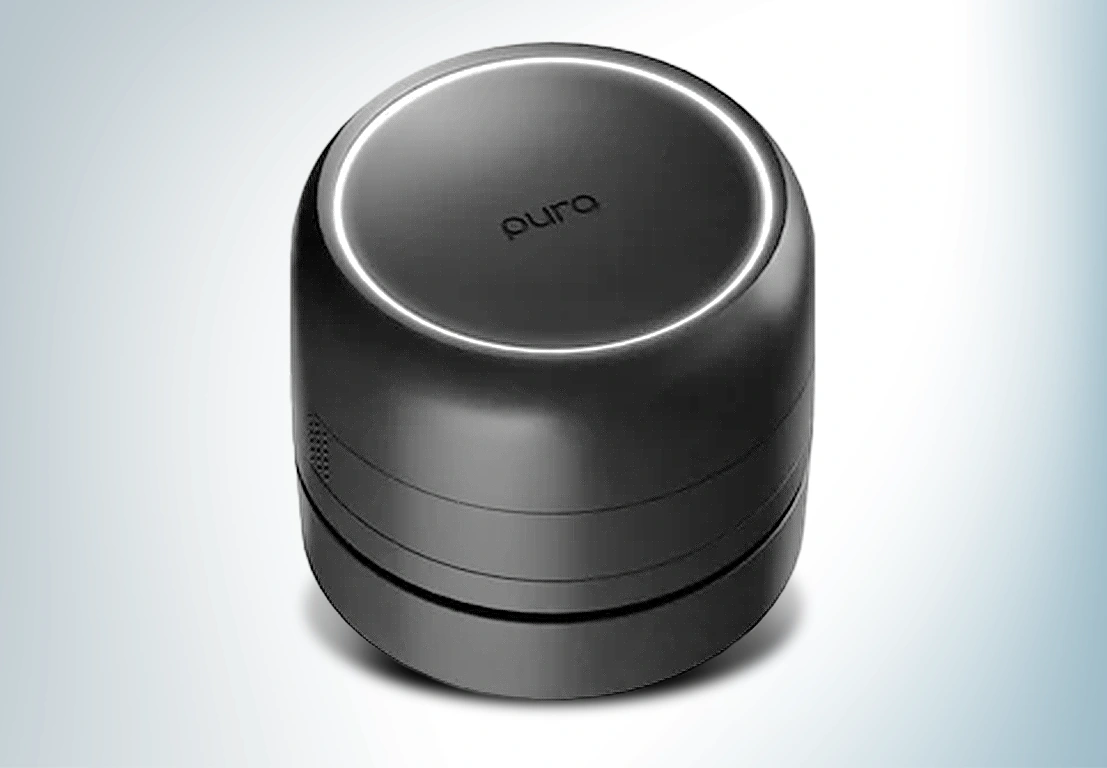
Pura designs its smart fragrance hardware in Onshape and runs the CFD in SimScale. Jared Raulston, Senior Mechanical Engineer at Pura:

Jared Raulston
Senior Mechanical Engineer, Pura

“We have been using SimScale to develop new smart fragrance technology for the home and vehicles. The workflow from Onshape to SimScale is truly seamless and has helped us to innovate rapidly. Before, we used traditional desktop CAD and simulation tools, which, in hindsight, were a major obstacle to innovation. My team and I can run multiple CAD geometries in parallel in SimScale to evaluate airflow, pressure drop, and room air diffusion at once to quickly converge on a near-final product variant.”
Pura tested four internal duct designs on the Car Pro diffuser, comparing pressure drop and velocity across each, then moved to vehicle-level diffusion modeling with particle tracing. Physical validation with smoke pens and pressure and flow measurement equipment agreed with the simulation. Read the Pura case study for the full workflow.
Thermo-Consult ran a cleanroom ventilation study the same way. “The 3D model that was created in Onshape was imported to the SimScale platform with a single ‘click’.” They used a hex-dominant parametric mesh with refinements and two analysis types, incompressible for the state without a thermal load and convective heat transfer for the state with one. See the Thermo-Consult case study.
What can I achieve with SimScale and Onshape?
One of the most common complaints from stress and simulation engineers is the limited capabilities and low level of control within integrated simulation packages in CAD software. But with SimScale, it is a completely different story. Because its technology is based on various proven, specialized open-source finite element codes, you have access to a full set of functionalities:
- A choice of a simple or an advanced finite elements solver.
- The simple solver is similar to what you are used to in your desktop software package: concentrated loads and pressures, fast solutions, and only the essential stress and deformation results to analyze.
- The advanced solver opens up the full range of FEA, for example:
- And you can find many more features in the documentation.
Here are a couple of example projects in the Public Projects Library, which you can reuse to save time and guesswork in the simulation setup. These examples were modeled in Onshape and simulated in SimScale:
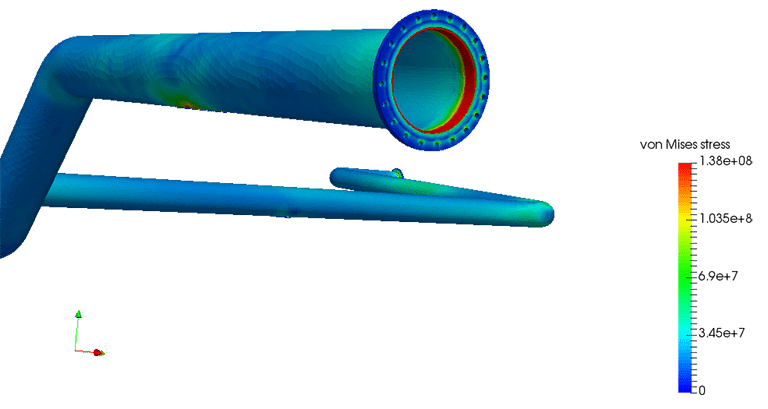
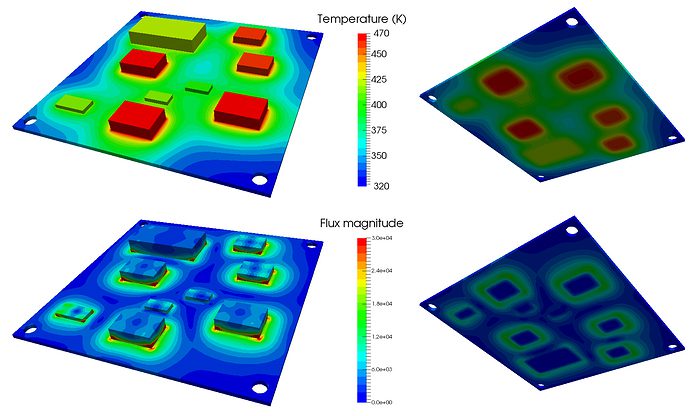
You can browse the projects, check the parameters and simulation setup, and take a look at the results. There are, of course, many more example projects in the library that will help you learn the full capabilities of SimScale.
More of them are collected on the Onshape tag page in the public projects library.
If I change the Onshape model, do I have to redo the simulation?
No. SimScale keeps the simulation setup when the geometry changes, so a revised Onshape model reuses the boundary conditions, material assignments, and mesh settings you already defined. You re-import and re-run rather than rebuilding.
This is what makes the pairing worth the setup cost. Onshape is parametric, so a design change is a parameter edit, and CAD associativity means the simulation follows it. With the FeatureScript MCP, AI can now write those parametric features for you. Convion built a parameterized Onshape model and ran conjugate heat transfer across it to compare design variants without rebuilding the study each time.
One caveat for CFD specifically: if you extracted the fluid volume in SimScale’s CAD mode, that operation is re-applied to the new geometry, but a change that alters the inlet or outlet faces can need the caps redefined. Modeling the fluid domain in Onshape avoids this.
What it costs to run CFD on an Onshape model
The Community plan is free and includes 10 unrestricted simulations, up to 3,000 core hours, and a maximum computing instance of 16 cores. Projects on the Community plan are public. That is enough to run a first CFD study on an Onshape model end to end and see whether the results are worth building on. Beyond the 10-simulation limit you can keep running, but results come back qualitative rather than quantitative.
Private projects, larger instances, and the full set of analysis types are on the paid plans. See plans and pricing for the current lineup.
If you are in the Onshape Start-Up Program, SimScale and PTC offer eligible members three months of free Professional License access. You apply through the Onshape Start-Up Program and activate the trial against your Onshape account.
Run your first CFD study on an Onshape model
Create a free SimScale account and import your Onshape geometry straight into the workbench.
Onshape CFD and FEA: frequently asked questions
Not natively. Onshape Simulation covers structural linear static and modal analysis only. To run CFD on Onshape geometry you connect a cloud simulation platform such as SimScale, which imports the model directly from your Onshape documents and solves incompressible, compressible, multiphase, and conjugate heat transfer cases in the browser.
Yes, for linear static and modal analysis. Onshape Simulation returns stress, strain, natural frequencies, and mode shapes. Nonlinear statics, plasticity, contact, dynamics, harmonic response, and thermomechanical analysis need a connected FEA tool.
Two: structural linear static and modal. Onshape’s documentation describes it as offering “stress, strain, natural frequency, and mode shape calculations.” No fluid, thermal, nonlinear, or electromagnetic analysis.
Onshape lists two simulation partners in its app integrations directory: SimScale and Luminary Cloud. SimScale covers CFD, FEA, thermal, and electromagnetics on one platform and imports Onshape geometry through the Onshape Connector App with no export step. Which one fits depends on whether you need structural and thermal analysis on the same geometry or CFD alone.
Yes. The SimScale Community plan is free and includes 10 unrestricted simulations, up to 3,000 core hours, and a 16-core maximum instance, with projects kept public. Members of the Onshape Start-Up Program can get three months of free Professional License access.
Create a SimScale project, open the simulation workbench, and click Import. That opens the Onshape Connector App, where you browse your Onshape documents and pick an assembly, multi-body part, or single body. The geometry loads into the workbench directly, with no STEP or Parasolid export.
Usually a little. Fasteners, threads, small fillets, and cosmetic detail add mesh cells without changing the flow, so they are worth suppressing. The bigger job is the fluid volume itself, which is not in the CAD file: you either extract it in SimScale’s CAD mode or model it in Onshape as a separate body.
No. The simulation setup persists across geometry updates, so boundary conditions, materials, and mesh settings carry over to the revised model. Only changes that alter the faces used for inlets, outlets, or the extracted fluid volume need attention.
It depends on mesh size and analysis type, not on your hardware, because the run happens on cloud compute. A first incompressible internal-flow case on a coarse mesh typically finishes in minutes. Runs execute in parallel, so several design variants can be solved at once instead of queued.
Both put CFD next to the CAD model. The difference is where the work happens: SOLIDWORKS Flow Simulation is a desktop add-in bounded by the workstation it runs on, while Onshape and SimScale both run in the browser, so geometry, simulation, and results are shared through a link and the compute scales with the run. Pura moved from desktop CAD and simulation tools to Onshape and SimScale for exactly this reason.