Ask a text-to-CAD tool for a washer and you’ll get something washer-shaped. Check the sketch and the hole often isn’t constrained concentric to the outer edge, and none of the dimensions are driven by parameters. The first time someone changes the bolt size, the model falls apart.
That gap matters. Engineers need models they can edit, version, release and send to manufacturing.
PTC Onshape® and SimScale have a different answer, shown across two recent sessions. Use AI to write parametric CAD tools in code, run those tools in your CAD system, then hand the resulting design space to a simulation agent that tests every variant. This article walks through both halves, with a worked example that went from a one-line prompt to a tested, versioned design in an afternoon.
What is text to CAD?
Text to CAD is the use of generative AI to create a 3D CAD model from a written prompt. Tools take three broad routes:
- Direct geometry generation. The model outputs a mesh or solid (STL, OBJ, sometimes STEP). Fast, but there’s no feature history to edit.
- Code generation. A language model writes a script (CadQuery, OpenSCAD or a CAD system’s own language) that builds the geometry. Change a variable and the part updates.
- API-driven modeling. The AI drives a CAD system’s API step by step to build native features, which works until one bad reference breaks everything downstream.
Only the second and third routes produce something a manufacturing engineer can keep working on. That’s where the useful version of text to CAD is heading.
Why text to CAD isn’t ready for manufacturing
Darren Henry of PTC Onshape put it plainly at SimScale’s Agentic Unlocks event: text to CAD keeps improving, but it isn’t ready for manufacturing. He showed two examples:
- The washer. Generated geometry that looked right but missed the concentric constraints and sketch parameters a designer would set by hand.
- The office chair. A model that was fine for a video game and no use for a production drawing, because nothing in it captured design intent.
The root cause is spatial reasoning. Large language models (LLMs) are good at research and very good at writing code, but they still struggle to reason about sketches, constraints and how features depend on each other. Independent testing points the same way: when Xometry tested 7 text-to-CAD tools, the tools handled simple parts but struggled with a 24-tooth gear and a manifold block, and editability varied widely between them.
So the practical question for an engineering team is how to get AI’s speed without losing control of the model.
Onshape’s 3 rules for AI in CAD
In the webinar, Dan Kaine, Director of Partnerships and Market Development at Onshape, set out the rules PTC uses to judge any text-to-CAD workflow:
- Humans stay in the loop. Engineers must be able to verify what the AI generated and make intelligent edits to it.
- Results are deterministic. The same prompt should give the same result, with engineering intent preserved. “A STEP file in the ether that is uneditable and is different every time you run the same prompt is not all that valuable to an actual engineering workflow,” Dan said.
- The output lives where engineers work. The model belongs in the CAD and PDM system the team already uses, so it can flow into drawings, releases and simulation.
AI-written FeatureScript meets all 3.
Text to code to CAD: how the Onshape FeatureScript MCP works
FeatureScript is the programming language behind Onshape’s own modeling features. Sketches, extrudes and fillets are all written in it, as a layer between the geometry kernel and the design environment. The source is open, so you can read how Onshape’s fillet works and write your own features that behave like any built-in one: parametric, editable in the feature tree and shareable across your company.
Writing FeatureScript used to be a specialist job. The FeatureScript MCP server, released by PTC through Onshape Labs on 13 August 2026, changes that. It connects a coding LLM such as Claude, ChatGPT or Gemini to FeatureScript through the Model Context Protocol (MCP). You describe the feature you need, and the AI writes, debugs and validates it inside Onshape.
This works because of where the AI’s strengths sit. A parametric model that survives edits depends on stable references to faces, edges and vertices. Those are hard to get right through prompts alone, but they’re queryable in code, and code is what LLMs write best. “It turns out that AI loves this language,” Darren said.
His examples from the Agentic Unlocks session:
- A flange bushing tool built from a manufacturer’s PDF catalog in about 34 minutes.
- A halftone vent pattern and a phyllotaxis pattern, both driven by parameters.
- A wire shelf tool that also outputs its own cut list.
- A shell-and-tube heat exchanger tool with close to 600 components, built in about a day of prompting vs. an estimated 150 hours by hand.
You pay for AI once, then reuse the tool
The economics are the quiet advantage. “I’m using AI tokens to generate the tool. But once I have built the tool, I’m no longer using AI. I’m using Onshape,” Darren said. A finished feature runs with no LLM calls and no recurring token cost, however many times your team uses it.
Each tool also captures how your company designs a part. That makes it a new kind of engineering IP, sitting alongside your models and drawings, and it can be shared company-wide in a few clicks.
From parametric model to tested design with the SimScale agent
AI can now generate more design variants than any team can check by hand. That makes simulation more important, because someone has to tell you which variant actually works.
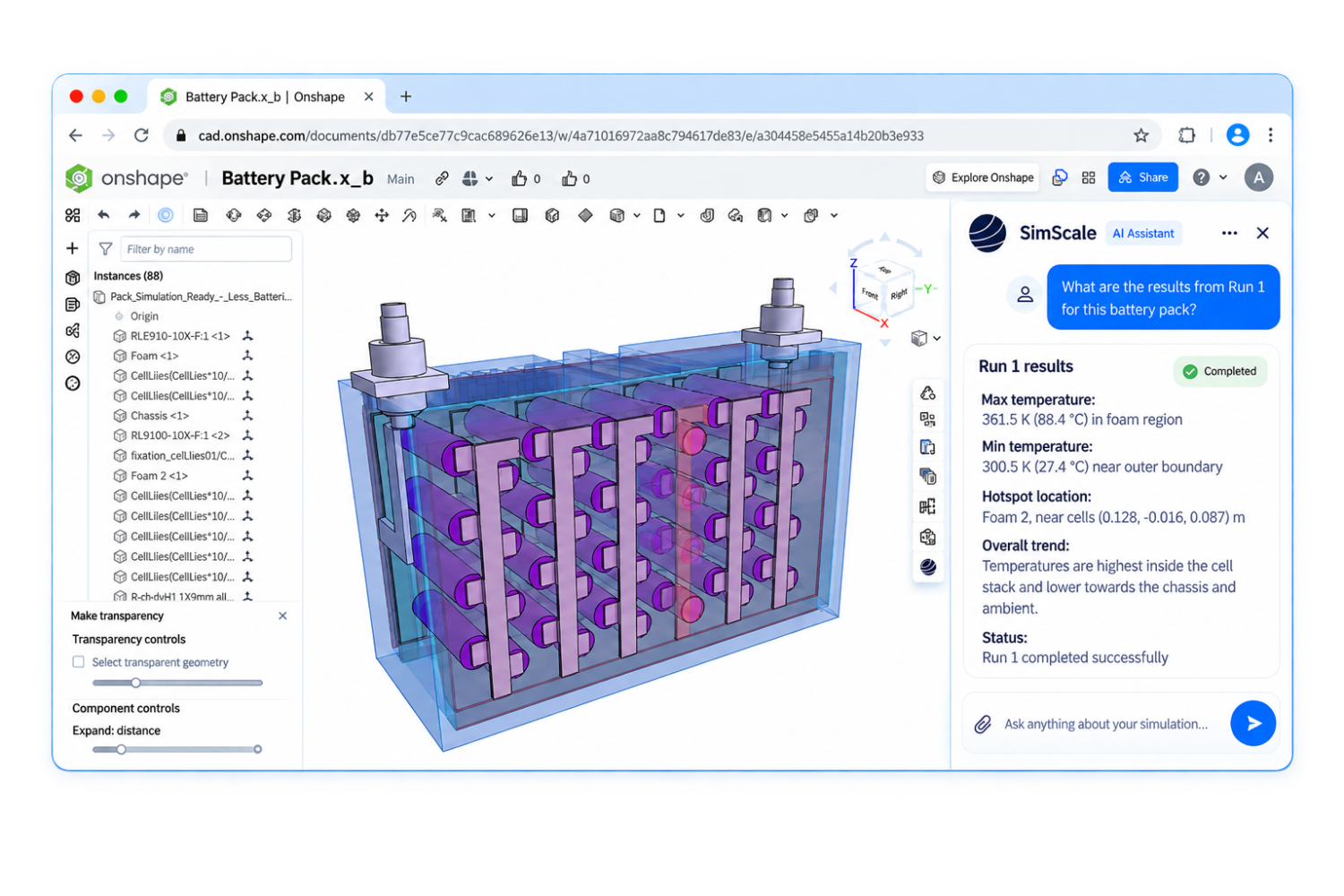
The SimScale Engineering AI agent runs inside Onshape as an App Store app. You ask it a design question in plain language and it sets up the simulation, runs it on SimScale’s cloud-native platform, interprets the results and reports back without you leaving your CAD window. It’s the same agent you’d use inside SimScale, and the chat is mirrored in both tools, so you can switch between them mid-study.
The link between the two halves is configurations. The parameters you expose in an Onshape configuration become the agent’s design space. Combine those geometry parameters with simulation parameters such as materials or heat loads, and the agent can sweep and search the whole space on its own.
Steven Laine, Director of Solutions Engineering at SimScale, showed this end to end in the webinar.
Worked example: an AI-designed pumpkin lantern
The webinar ran on 28 October, so the test case was seasonal: a carved pumpkin lantern. The engineering question was serious enough to show the full workflow. What candle height and wax keep the pumpkin’s lid below 100 °C so it doesn’t scorch through the night? The physics is conjugate heat transfer (CHT), with heat moving from the flame through the air and into the pumpkin wall.
Step 1: Generate the parametric geometry from a prompt
Steven prompted an AI code-generation tool, connected to Onshape through the FeatureScript MCP, to “create a FeatureScript for a parameterized Halloween pumpkin lantern” so he could study how candle height affects how hot the lid gets. The feature was written straight into Onshape.
The result was a full pumpkin with configurations for pumpkin diameter, candle height and flame height, plus parameters for the number of teeth, nose size and mouth opening. Change the candle height to 100 mm and the geometry updates instantly.
“One thing to call out there is you identified the parameter of interest,” Dan noted. Naming the parameters in the prompt is what makes them available to the next step.
Step 2: Ask the SimScale agent for a parametric study
From the SimScale panel inside Onshape, Steven asked the agent to set up a new project and run a parametric optimization study across:
- Candle height
- Candle wax: paraffin, beeswax and soy, with flame power varied to match each wax
- Flame height
He asked it to assign custom materials from his SimScale library, minimize lid temperature and produce a PDF report using views he’d saved in SimScale.
Step 3: The agent fills the gaps and asks for a budget
Steven hadn’t specified a heat output for each wax, so the agent worked out a representative flame power for each chemistry. Before running anything, it asked him to confirm a budget of 16 simulations. That check keeps you in control of compute.
Step 4: Batches, analysis and a Bayesian search
The agent ran a first batch of 8 designs to map the design space (candle heights from 15 to 100 mm), read the results, then chose the next batch based on what it had learned. In total it ran a 16-design Bayesian optimization in 3 rounds, all visible as a traceable study in the SimScale project.
Step 5: Read the report
| Finding | Result |
|---|---|
| Best design | Soy wax, 15 mm candle, 10 mm flame |
| Biggest effect on lid temperature | Candle height |
| Second-biggest effect | Flame power |
| Coolest wax | Soy |
The shortest candle with the coolest-burning wax wins, which Steven admitted you could have guessed. What matters is the process. The agent reached the answer on its own and documented how it got there: objective, design space, assumptions, a temperature history at the lid and every saved view applied to every run.
“This morning I set off the run. I didn’t look at it again for about two hours because I was busy with other things, and then when I opened it up I had the final report ready,” he said.
Step 6: Version the result and branch for the next question
Back in Onshape, Steven set the configuration to the 15 mm candle, imported the PDF report into the Onshape document and saved a version named for the result. That version carries the evidence for the design decision. He then created a branch to study the carvings separately.
The follow-up question was more useful: what’s the tallest candle that keeps the lid under 100 °C all night? A second study answered it:
- A 55 mm soy candle is the tallest option that stays under the limit.
- Soy and beeswax met the requirement at that height. Paraffin didn’t.
- The whole study took 42 minutes, with individual runs taking 15 to 35 minutes.
Explore the study yourself. The SimScale project below holds every simulation run, and the pumpkin lantern Onshape document has the AI-written FeatureScript and its configurations.
What this changes for design teams
The most useful time to run a simulation is while the design is still changing, when a bad decision costs almost nothing to reverse. In most hardware teams, getting a validated result back to the designer takes weeks, mostly spent on handoffs, license queues and waiting for the simulation team to have capacity.
Put the agent next to the CAD model and that wait disappears for a large share of design questions. Steven’s list of tasks to hand over first: the repetitive ones, such as mesh convergence studies and design sweeps, that would otherwise mean clicking through parameters or writing a Python script.
There’s more headroom beyond the chat window:
- Headless workflows. Both Onshape and SimScale have full APIs, so the same loop can run without a UI, with many agents running design studies in parallel and a dashboard to monitor them.
- Physics AI. Train a surrogate model on past simulation data, for example from a design of experiments, and the study runs in minutes instead of hours.
- Other physics. The agent drives FEA, CFD, thermal and electromagnetic simulation the same way.
How to get started
Everything in the demo is available today:
- Install the SimScale agent from the Onshape App Store. It doesn’t count against your Onshape API call allowance. See the Onshape integration for details, or read how SimScale’s Engineering AI went live inside Onshape.
- Install the FeatureScript MCP from the Onshape App Store and connect your preferred coding LLM.
- New to Onshape? PTC’s Discovery Program gives eligible users 6 months of Onshape Professional.
- Prefer the classic route? Our guide to Onshape CFD simulation covers running CFD and FEA on Onshape models step by step.
See the prompt-to-simulation loop live
Watch Dan and Steven build and test the pumpkin lantern in Onshape, then try the SimScale agent on your own design.
Frequently asked questions
Not for most production parts yet. Prompt-generated geometry often lacks constraints, editable parameters and design intent. Having AI write parametric CAD features in code, such as Onshape FeatureScript, gives you editable, repeatable models that fit a manufacturing workflow.
It’s a PTC tool, released through Onshape Labs in August 2026, that connects coding LLMs such as Claude, ChatGPT or Gemini to Onshape’s FeatureScript language. Engineers describe a feature in plain language and the AI writes, tests and debugs it as a reusable custom feature.
No. You use AI tokens while building the feature. After that it runs in Onshape like any built-in feature, with no LLM calls or recurring AI cost.
No. FeatureScript is one way to create the parametric geometry. The SimScale agent works from Onshape configurations, so any configured Onshape model can be studied, however it was built. Variable tables aren’t supported by the agent yet.
Yes. Open the agent in SimScale, give it the Onshape document, and it pulls in the CAD, changes the configured parameters and runs the study. The chat history is mirrored in both tools.
Yes. The agent sets up and runs FEA, CFD, thermal and electromagnetic studies in the same way, combining CAD parameters with simulation parameters such as materials.