
How long does it take to go from a battery pack CAD model to a running thermal simulation if you never touch the simulation tree? Aly Taleb from our solutions engineering team and I set out to answer that live, in 30 minutes, on a public project that anyone with a Community account can open.
Why we ran this webinar
We have been talking about the SimScale AI agent for the past 18 months or so, and it is already in production with enterprise customers. In August, we opened it to the whole Community. Rather than give a feature tour, we wanted to show what it does for you on a real model, mistakes included.
So we split the roles. I played a Community user coming to the agent for the first time, with a model to simulate and not much of a plan. Aly played the simulation expert who knows the agent inside out. Here are the five things I took away from the session.
Watch the on-demand webinar
The full session, including every prompt and every reply from the agent, is on demand. Watch the recording and open the same project in your own account to follow along.
1. The SimScale AI agent is now free for every Community user
Every SimScale Community account now comes with an allowance of AI credits for the agent. There is nothing to enable: sign up for a free account, open a simulation, and the agent panel is in the Workbench.
You can copy the project we used in two clicks. Search the public projects library for “SimScale agent webinar” and you will find two versions:
- Start: the geometry only, for running the whole workflow yourself
- Pre-solved: the same model with a flow solution already computed, for jumping straight to results
The model is a Formula Student battery pack: 48 cells, bus bars connecting them, insulator layers top and bottom, and an extracted internal air volume. Our goal was to size the cooling airflow and find out how hot the cells get.
2. A vague prompt gets questions; a specific prompt gets a setup
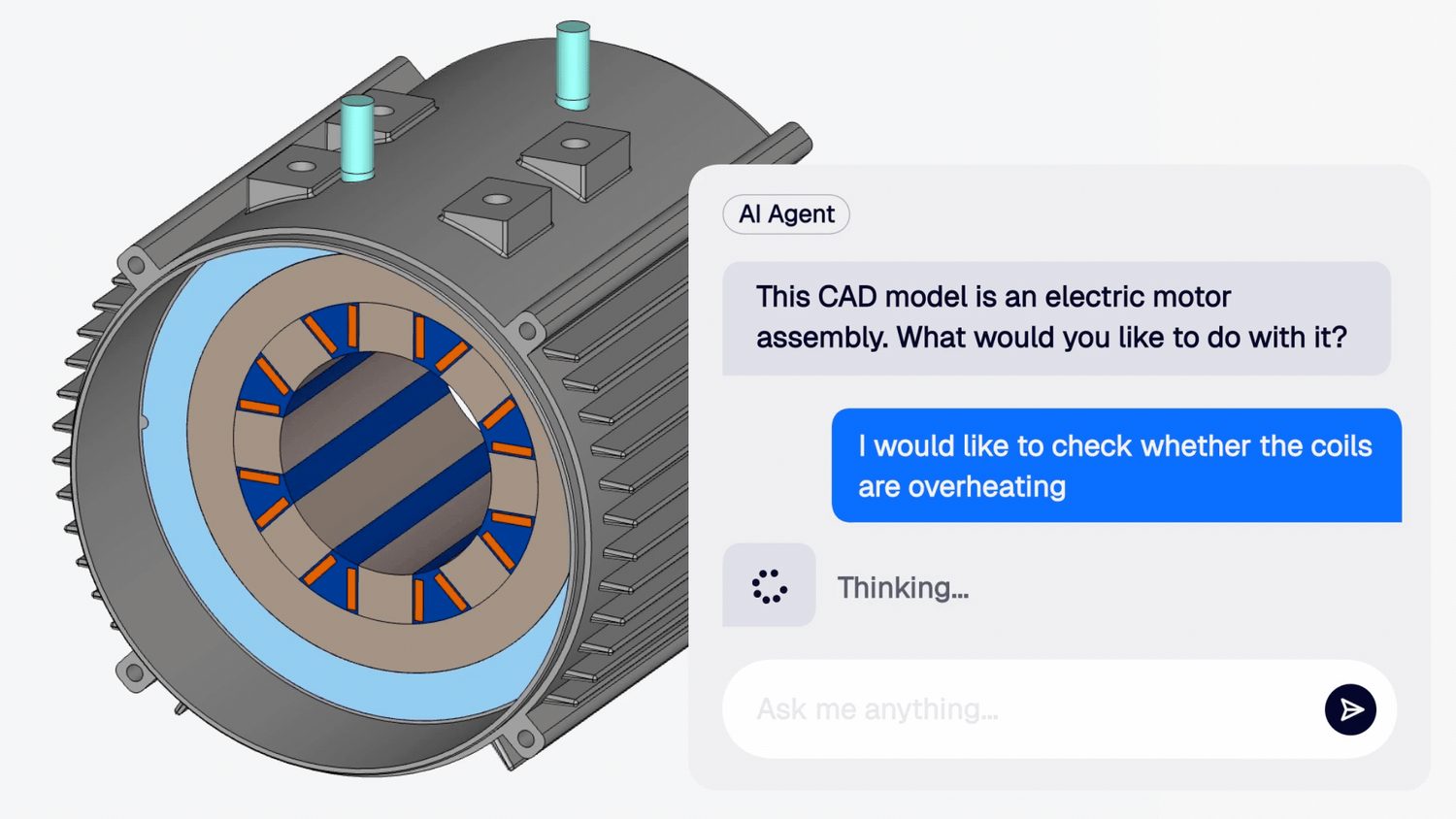
I started by asking the agent to explain the model. It picked out the enclosure, the terminal posts, the cells as the heat source, the bus bars and the insulators. As Aly explained, the agent reads part names and metadata, measures geometry and topology, and uses visual tools to interpret the CAD.
Then I asked it to “size the cooling flow for the pack.” That was deliberately vague. The agent could not tell whether I meant changing the geometry or choosing a flow rate, so it spent its time reasoning about the request instead of setting anything up. In the interest of time, Aly stopped it and gave a more specific prompt:
Example prompt: “Understand the temperature distribution. Each cell dissipates 2 W. The pack is actively cooled. Select a suitable inlet flow rate and use your best judgment for materials.”
That was enough for the agent to plan and build the simulation. Context is king: the more you tell the agent, the less it has to infer, and the faster it works. You can also attach a specification document, such as a PDF or a PowerPoint with the operating conditions, and the agent will pull the boundary conditions from it. For more prompt patterns, see the SimScale Agent documentation.
3. The agent fills gaps with engineering reasoning instead of failing
Aly’s prompt still left out three things an engineer would normally specify: the flow rate, the inlet and outlet locations, and the materials. The agent worked through each one:
- Heat load: 48 cells at 2 W each, giving 96 W in total
- Flow rate: it assumed a maximum air temperature rise of 10 °C and ran a hand calculation, arriving at roughly 8 L/s
- Ports: it identified the single port on the end face as the inlet and the six slots as outlets
- Analysis type: it created a conjugate heat transfer (CHT) simulation and assigned materials to every solid
- Validation: before handing back, it reviewed the full setup for errors and corrected what it found
Looking at the model, I could see straight away where the inlet and outlets were. A graduate fresh from university might not. The agent had to work through the same reasoning, and it got there.
Aly pointed out where this differs from scripted automation. A script that expects the user to supply an inlet flow rate fails when the value is missing. A reasoning model estimates a realistic value and carries on.
We ran out of time to wait for the live solve, so I switched to a project I had prepared earlier with two cases, targeting air temperature rises of 15 °C and 25 °C. The simulated rises came out at 15.98 °C and 26.3 °C, close to target in both. When I asked the agent whether the results met our requirements, it also reported the peak cell temperatures and how far each hotspot rose above the inlet temperature.
4. Custom agents turn a repeat setup into a one-prompt job
If you run the same type of simulation often, a custom agent saves you writing out the context every time. It works like the custom assistants in general-purpose AI chat tools: a set of instructions the agent reads before every run.
Aly showed us a battery cold plate agent. Its instructions say, for example, that the battery contact face is the largest flat face of the assembly, and that the inlet and outlet are planar circular or annular faces. With that, you upload new CAD and start the agent without any further prompting. It can carry the job through to a PDF report built from your template, covering convergence, temperatures and hotspots.
Custom agents also take a knowledge base. Our customers upload:
- Test standards such as ISO, DIN or ASME, to simulate standardized tests and cut down on physical testing
- Internal simulation best practices
- A material database, so the agent assigns the right material to each component
Aly’s tip: build the instructions with the agent itself. Set up one simulation, ask the agent to write generic instructions for that type of setup, and refine them each time a new case comes along.
5. Run the agent in the background, or with no prompt at all
We watched the agent work in real time because it was a demo. That is not how you are meant to use it. Aly put its setup speed at roughly that of a junior engineer, so the intended workflow is to give it a detailed prompt and come back later. Because the agent and the solver both run in the cloud, you can open another project or start a second agent in the meantime without slowing your computer down.
The next step is headless operation, where no one prompts the agent at all. Aly described one customer whose simulation team had a backlog of requests in a ticketing system. Agents now pick a ticket, pull the matching CAD from the PLM system, run the simulation, and send the engineer a PDF report with a link to the run. That is how Engineering AI scales from one engineer’s assistant to a fleet of agents working through a queue. For an enterprise example, read how our AI agent ran a gearbox RFQ workflow.
Frequently Asked Questions
Yes. Every Community account includes an allowance of AI credits for the agent. When you run out, contact us through the in-app chat to test it further.
No. Sign up for a free Community account, open a simulation, and the agent is available in the Workbench.
Yes. In the webinar, the internal air volume had already been extracted, but the agent can do this step for you. It can also scale parts, for example when a model is imported in millimetres instead of metres.
Yes. By default it asks you to review the setup before running. Tell it in your first prompt to run without asking and it will start the simulation once the setup is complete.
Search for “SimScale agent webinar” in the public projects library and copy the version marked “start.”
Try it on your own model
The best way to judge the agent is to give it a model you know well. Sign up for a free Community account, copy the webinar project or upload your own CAD, and start with a specific prompt: what you want to know, the loads, and what the agent should decide for you. If you tried it during the webinar, I would like to hear how you got on.
Try the SimScale AI agent for free
Every Community account includes AI credits. Copy the webinar project or bring your own CAD.