
websights

Fill out the form to download

Required field
Required field
Not a valid email address
Required field
Required field

How it Works

Step file support from FreeCAD to SimScale
1

Step file support

Export your FreeCAD model as a step file and drag and drop it into the SimScale workbench.
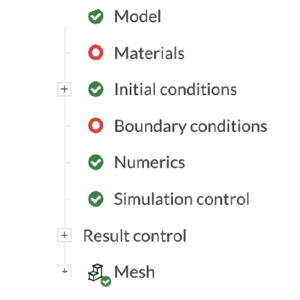
simulation setup
2

Cloud-native simulation setup

Set up and run sophisticated multiphysics simulations. Your computer is free while the simulations run in the cloud.
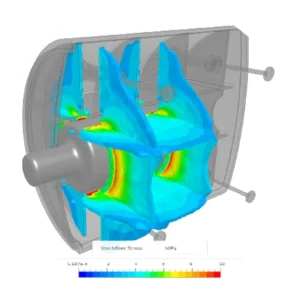
Post processing simulation image of a coffee grinder designed in FreeCAD and simulated in SimScale
3

Integrated online post-processor

Analyze your simulation reasults and validate your models with SimScale’s cloud-native post-processor.
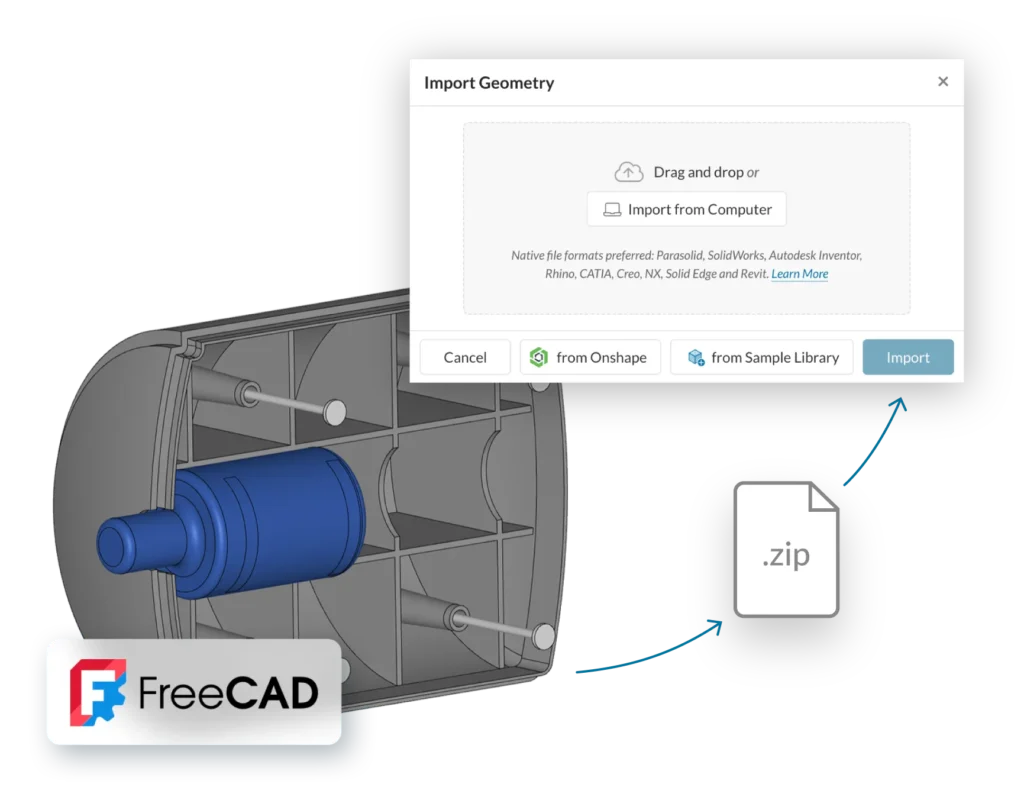
FreeCAD models can be easily imported to SimScale as Step files

Benefits: FreeCAD to SimScale

  • Leverage CAD associativity for seamless geometry updates, preserving all load and boundary condition setups.
  • Save time by rapidly testing multiple CAD designs without reassigning simulation settings.
  • Access high-performance simulation without the need for advanced hardware.
  • Simplify setup with no complex integrations or software installations required.

Steps to Import FreeCAD Files

  • Single Parts: Import directly into SimScale.
  • Assemblies: Place the assembly and part files in one folder (.zip), using the assembly name as the folder name.
  • Use the prefix system (NS_XXX) for face names to maintain associativity across model versions.
  • Upload to SimScale and begin your simulation.

For more details on CAD preparation and upload, visit our documentation.

Optimize Design Analysis for Product Reliability

Predict deformation, stress, and strain under operational loads using SimScale’s cloud-native platform. Import FreeCAD models, validate durable designs, and streamline product development. The integration was developed together with Alsado. Learn more about FreeCAD for mechanical engineering at www.alsado.de.

Sign up for SimScale to accelerate your product design validation in the cloud.
