
Hi @cecil_pabbathi ,
I’m not sure what kind of problems is occurring in your case.
But I present 3 answers of problems and solutions for using STL.
- Model must be solid on CAD
- Multiple solids in one STL file
- Spliting a STL solid model into different surfaces on SimScale
It would be nice if there were answers to solve your problem.
If there is nothing to solve the problem, please tell us again.
1. Model must be solid on CAD
Whichever CAD file format you use for CFD,
the original model should be a solid or closed surfaces.
If it is not a solid or closed surfaces, you need to close the hole first.
2. Multiple solids in one STL file
I use Rhinoceros for modeling surfaces.
Rhino can export just only one solid object for one STL file.
But you can combine multiple STL files into one STL file after exporting them.
The way is as in below.
2.1 Export solid models as “ASCII” STL format files
Exporting solid models as “ASCII” STL files for each other.
2.2 Change the names of solid to
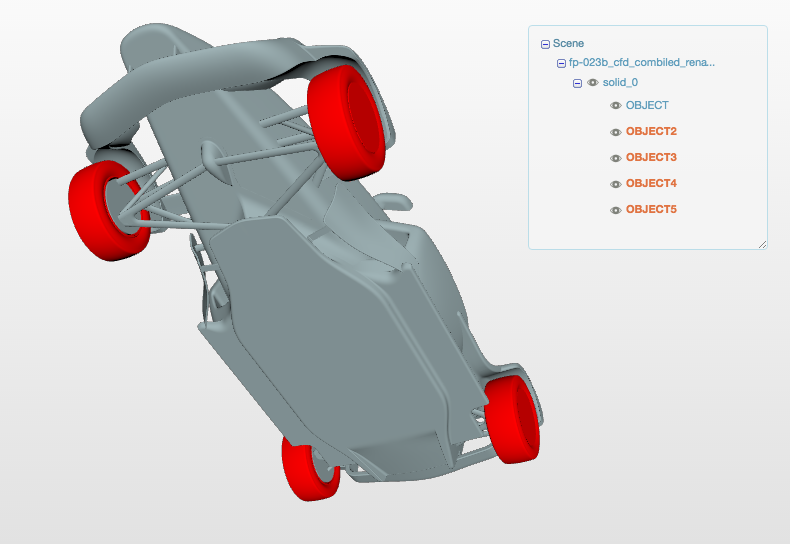
Names of solid may be the same for the each exported files and solids of the same name are recognized as a single solid.
In order to be recognized as separate solids you need to change these solid names for each.
Change the name of solid in the each ASCII STL files using text editor from like ..
solid OBJECT
...
endsolid OBJECT
to like …
solid OBJECT2
...
endsolid OBJECT2
2.3 Combine ASCII STL files using cat command
I execute the cat command on macOS. Linux may be the same.
I do not know that kind of command on Windows.
cat 1.stl 2.stl 3.stl 4.stl 5.stl > fp-023b_cfd_combiled_rename-OBJECT.stl
2.4 Upload the combined STL file to SimScale
And also see the thread below.
3. Spliting a STL solid model into different surfaces on SimScale
There is a funciotn on SimScale to split a STL solid model into different surfaces.
I’m sorry that I don’t know about this function well.
All the best,
Yosuke