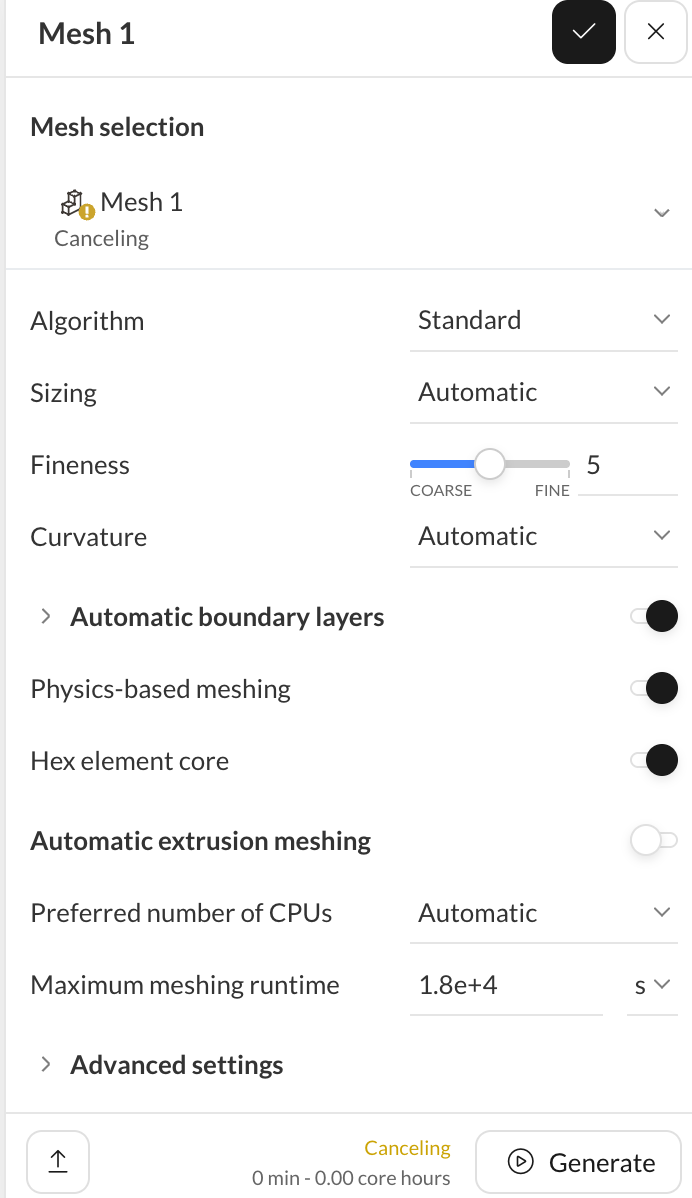
Mesh stuck on “Canceling”; unable to generate mesh or start simulation
I’m setting up an incompressible CFD simulation of a two-element FSAE front wing. Attempting to generate the mesh returned error code d7bawjeZ, and Mesh 1 now remains on “Canceling.”
Project: Open affected mesh
First observed: October 21, 2026, around 9:01 p.m. Pacific time
Symptoms and troubleshooting
-
The mesh remains on “Canceling,” displaying 0 min / 0.00 core hours.
-
Clicking Generate now produces no error, but no visible progress either.
-
Refreshing and opening the project in an incognito window have not resolved it.
-
Starting a simulation to trigger automatic mesh generation returned a second error: zybDadkM.
-
I cannot tell whether mesh generation actually began before the initial error.
Setup
-
Incompressible, steady-state, k-omega SST, SIMPLE.
-
Standard mesher, automatic sizing, fineness 5.
-
Fluid volume created by subtracting the wing geometry from an enclosure.
-
Wing boundary-layer refinement: 20 layers, 0.00003 m first-layer thickness, 0.003 m total thickness.
Could the SimScale team check the operation’s backend status and both error codes, and advise how to recover it without losing the simulation setup? Please also confirm whether the operation is consuming compute resources despite the displayed usage.